n8n AI Agent node explained: every setting and when to use it
What each n8n AI Agent node setting does: prompt source, output format, fallback model, max iterations, streaming, batching and human review of tools.
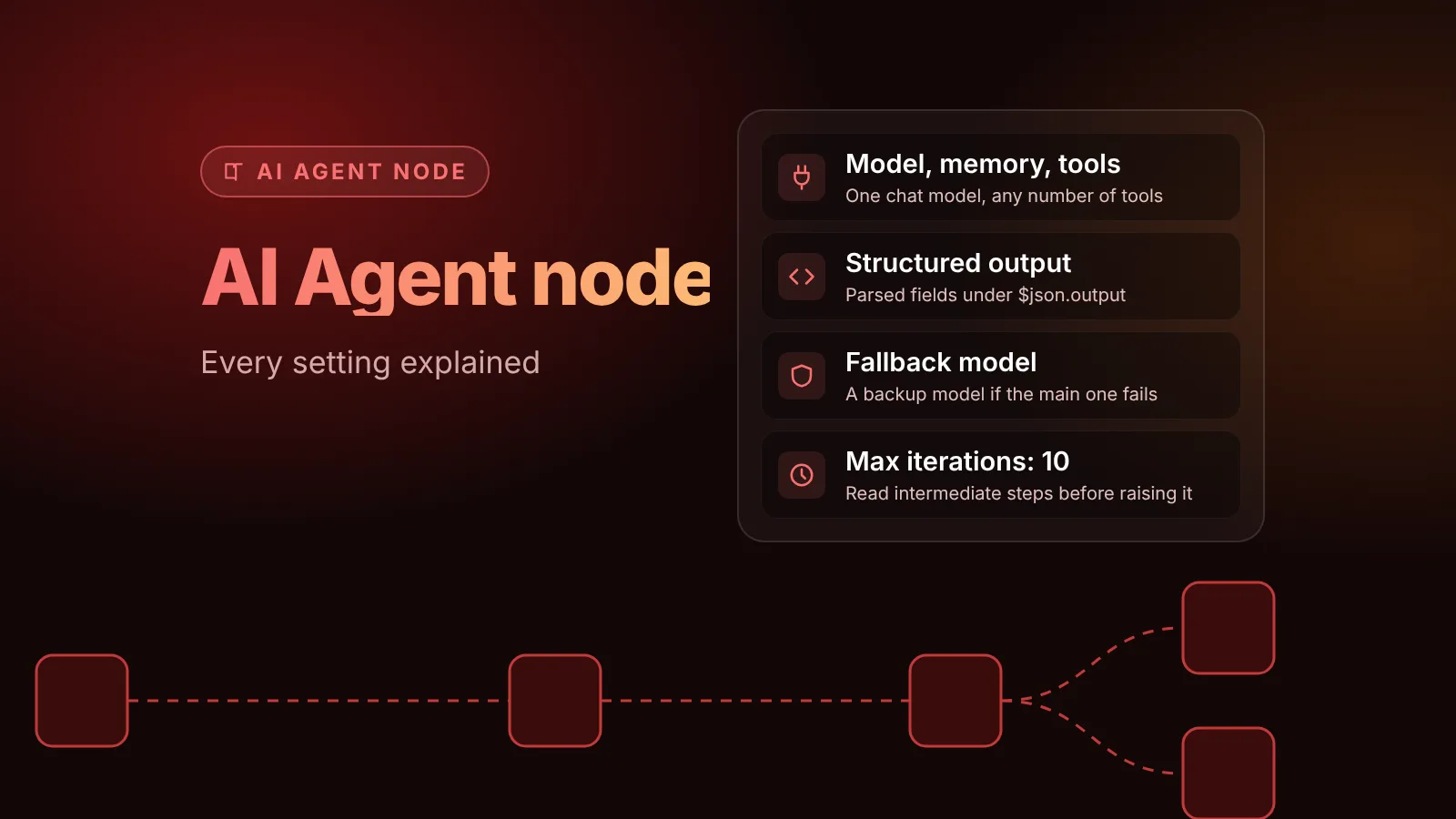
The n8n AI Agent node is a root node that sends a prompt to a chat model, lets the model decide which connected tools to call, runs those tools, and repeats until the model has an answer. You configure it in two places: the sub-nodes you attach (one chat model, optional memory, tools and an output parser) and a short list of settings that control the prompt, the output format, a fallback model, and how long and how fast the agent runs.
This guide explains every one of those settings, with the defaults in n8n 2.44.7, the current stable release (node version 3.1). If you have never built an agent, start with our step-by-step guide to building your first AI agent in n8n and come back here when you want to know what the other switches do.
The short version
- Connections: exactly one Chat Model (required), at most one Memory, any number of Tools, and an Output Parser or Fallback Model only when you turn those on.
- Prompt source: Connected Chat Trigger Node reads
chatInput; Define below takes any text or expression. - Most useful options: System Message, Max Iterations (default
10), Return Intermediate Steps for debugging, Enable Streaming (on by default). - Newer options: Force Tool Call on First Iteration (n8n 2.40) for small models that skip tools, and Automatically Passthrough Binary PDFs (n8n 2.28) for models that read PDFs.
- n8n 3.0: version 1 of the node, with its SQL, ReAct and other agent types, is removed. Update old nodes before you upgrade.
What the AI Agent node does
n8n's AI Agent docs describe the node as an agent that "decides which tools to call to complete a task". Each round of that loop is one iteration: the model either calls one or more tools, or writes the final answer. The tool results go back to the model, and the loop continues.
Since n8n 1.82.0 every AI Agent node works as a Tools Agent, which uses the model's native tool calling. That is why the node no longer has an agent type setting. The older types still appear in old templates and tutorials, and they matter for the 3.0 upgrade (see below).
AI Agent node vs Basic LLM Chain vs Agents
n8n has three ways to put a model in front of your data, and picking the wrong one is the most common reason an agent feels slow or unpredictable.
| Option | Use it when | What it can't do |
|---|---|---|
| Basic LLM Chain node | One prompt in, one answer out: summarize, classify, extract, rewrite | No tools and no memory, according to n8n's agents vs chains page |
| AI Agent node | The model has to choose between actions or look things up, inside a workflow you control | Lives in one workflow; reached through that workflow's trigger |
| Agents (the Agents tab, Preview) | An assistant people talk to from chat, Slack, schedules or other workflows | Separate product with its own builder; see n8n Agents explained |
If your prompt never needs a tool, use the Basic LLM Chain. It makes one model call per item, which is cheaper and easier to predict than an agent loop.
The connections under the node
The connectors at the bottom of the node are part of its configuration. In the node's source, the chat model, memory and output parser inputs each accept a single connection; tools accept many.
- Chat Model (required): the model that runs the loop. Without it you get the error "A Chat Model sub-node must be connected". The node only accepts chat model sub-nodes: plain completion nodes such as Ollama Model and Cohere Model are filtered out, so use Ollama Chat Model and the other chat variants.
- Memory (optional): stores the conversation so follow-up messages have context. Simple Memory is the easy start; for queue mode use a database-backed memory such as Postgres or Redis Chat Memory.
- Tool (any number): app nodes, HTTP Request, Code, Call n8n Workflow Tool, MCP clients, vector stores or another agent. n8n's docs say you must connect at least one tool. An agent without tools is a chat model with extra overhead, so use the Basic LLM Chain instead.
- Output Parser and Fallback Model: these connectors appear only after you turn on the matching setting, described next.
Node parameters
Source for Prompt (User Message)
This decides what the agent treats as the user's message.
- Connected Chat Trigger Node (default): reads the
chatInputfield from a Chat Trigger connected directly to the agent. - Define below: you write the Prompt (User Message) yourself, as static text or an expression such as
{{ $json.body.question }}. Use this after a Webhook, Form Trigger, Schedule Trigger or any node that isn't a Chat Trigger.
Two errors come from this setting. "No prompt specified" means the agent expected chatInput and didn't get it, so switch to Define below. "400 Invalid value for 'content': expected a string, got null" means your prompt expression resolved to nothing, according to n8n's common issues page. Check the expression in the editor's preview before you run the node.
Node version 3.0 also offered Connected Guardrails Node, which read guardrailsInput. Version 3.1, the default for new nodes in n8n 2.44, lists only the two options above.
Require Specific Output Format
Off by default, so the agent returns plain text in $json.output. Turn it on and an Output Parser connector appears; attach a Structured Output Parser with a JSON example or a JSON schema.
The Tools Agent docs explain how it works: the agent passes the parser to the model as a formatting tool. In the source that tool is called format_final_json_response, and the model calls it when it is ready to answer. The parsed fields then sit under $json.output, so the next node reads them as {{ $json.output.category }}.
Use it whenever another node consumes the agent's answer, such as an If node, a database insert or an API call. Free text is fine for chat replies and fragile for everything else.
Enable Fallback Model
Off by default. Turn it on and a second Fallback Model connector appears, which takes another chat model. In the source, the agent is built twice and wrapped with LangChain's fallback mechanism: if the call to the main model fails, the same request goes to the fallback model. The AI Agent Tool docs describe it as a backup "in case the primary model fails or isn't available".
A fallback from a different provider (for example Anthropic behind OpenAI) protects you from a provider outage or rate limit. Make sure the fallback model supports tool calling too, or the agent can't use its tools when the fallback answers.
Node options
Click Add Option to see these. Every one is optional.
| Option | Default | What it does |
|---|---|---|
| System Message | You are a helpful assistant | Instructions sent before the conversation: the agent's job, which tool to use for what, and what it must not make up |
| Max Iterations | 10 | How many loop rounds the agent may run before n8n stops it with an error |
| Return Intermediate Steps | Off | Adds each tool call and its result to the output, next to output |
| Automatically Passthrough Binary Images | On | Sends images from the incoming item's binary data to the model as image messages |
| Automatically Passthrough Binary PDFs | Off | Sends PDFs from the binary data to models that read PDFs natively |
| Enable Streaming | On | Streams the answer to the user while the model writes it |
| Batch Processing | Batch Size 1, Delay 0 ms | How many items run in parallel, and the pause between batches |
| Force Tool Call on First Iteration | Off | Makes the model call a tool in its first response of each run |
| Tracing Metadata | None | Custom key-value pairs added to tracing events |
System Message
The default is one line, "You are a helpful assistant". Replace it every time. A good system message names the agent's job, lists the connected tools by name with when to use each one, and says what the agent must never guess, such as prices, order states or dates. If you use human review on some tools (below), n8n's docs say to describe that in the system message too, so the agent handles a denied call gracefully.
Max Iterations
When the agent hits the limit, the node fails with "Max iterations (10) reached. The agent could not complete the task within the allowed number of iterations." That usually means the agent is stuck calling the same tool, not that it needs more rounds. Turn on Return Intermediate Steps, run it again, and read which tool it keeps calling and with what input. Fix the tool description or the system message first; raise the limit only for agents that genuinely chain many tool calls.
Return Intermediate Steps
Adds an intermediateSteps array to the output with every tool the agent called, the input it sent and what came back. It is the fastest way to debug an agent. Turn it off again in production if the steps contain data you don't want stored in execution logs.
Passthrough Binary Images and PDFs
With image passthrough on (the default), an image in the incoming item's binary data goes to the model as an image, so a vision model can read a screenshot or a receipt without a separate step. The PDF option, added in n8n 2.28, does the same for PDF files. The release notes name Google Gemini as an example of a model that reads PDFs natively and mention a 50 MB default size limit. With a model that doesn't accept PDFs, keep it off and extract the text first.
Enable Streaming
Streaming is on by default, but it only reaches the user when the trigger can stream: a Chat Trigger, or a Webhook node with Response Mode set to Streaming. While streaming is on, n8n shows a warning after each run reminding you to set the trigger's response mode to streaming. Turn streaming off for agents that run in the background, such as a scheduled report.
Batch Processing
When the agent receives many items, Batch Size sets how many it processes in parallel (default 1, one at a time) and Delay Between Batches adds a pause in milliseconds. Raise the batch size to speed up bulk jobs; add a delay when your model provider starts returning rate-limit errors. n8n notes that parallel batches can change the order of log output.
Force Tool Call on First Iteration
Added in n8n 2.40. When on, the model must call at least one tool in its first response of each run; later responses are unrestricted, so it can still answer. n8n added it for smaller or less compliant models (the release notes mention Mistral-Small, vLLM and Ollama) that reply in prose and ignore the tools. The model has to support forced tool choice. Leave it off for agents where some questions don't need a tool, such as "hello".
Multi-agent setups with the AI Agent Tool
To split work between specialists, connect AI Agent Tool nodes to the Tool input of a main AI Agent. According to the AI Agent Tool docs, the main agent delegates to them like any other tool, and you can nest them in several layers.
The AI Agent Tool has the same settings as the AI Agent node plus a Description. The description is what the main agent reads when it decides whether to delegate, so make it specific: "Answers billing questions using the invoices tool" works better than "Billing agent". Each sub-agent gets its own chat model, so you can give a cheap model the simple jobs.
Human review before a tool runs
For tools that send messages, change records or delete data, you can require a person's approval before the agent runs them. The human-in-the-loop docs describe the setup:
- Click the Tool connector on the AI Agent node to open the Tools Panel.
- In the Human review section, pick an approval channel, such as Chat, Slack, Telegram, Microsoft Teams or Gmail.
- Connect the tools that need approval to the review step.
When the agent wants a gated tool, the workflow pauses and the reviewer approves or denies the call. In the review message, {{ $tool.name }} and {{ $tool.parameters }} show what the agent is trying to do. For more on letting the model fill tool parameters, see the $fromAI() section of our MCP guide and the expressions cheat sheet.
What changes for the AI Agent node in n8n 3.0
n8n's 3.0 breaking changes page says version 1 of the AI Agent node is removed, together with its agent types: SQL Agent, Conversational Agent, OpenAI Functions Agent, Plan and Execute Agent and ReAct Agent.
- Nodes already set to Tools Agent behave the same after you update them to the latest version.
- SQL Agent users should connect a Postgres or MySQL tool sub-node to a recent AI Agent node instead.
- Find them before you upgrade: open Settings > Migration Report (available from n8n 2.39) and look for AI Agent v1 nodes.
The 3.0 beta is scheduled for October 27 and the stable release for early December, according to n8n's announcement (see our news post). Our n8n 3.0 breaking changes guide covers the rest of the upgrade.
Common AI Agent node errors
- "A Chat Model sub-node must be connected": attach a chat model to the Chat Model connector.
- "No prompt specified": the agent isn't directly connected to a Chat Trigger. Set Source for Prompt to Define below.
- "400 Invalid value for 'content': expected a string, got null": the prompt expression resolved to null. Check the field name in your expression.
- "Max iterations (10) reached": the agent looped. Read the intermediate steps before you raise Max Iterations.
- "Error in sub-node Simple Memory": usually an old version of the memory node (once called Window Buffer Memory) from a copied template. Delete it and add Simple Memory again.
- The agent never calls a tool: improve the tool's name and description, name the tool in the system message, or turn on Force Tool Call on First Iteration for small models.
More AI agent posts are collected under AI agents.
Sources
- AI Agent node (n8n docs)
- Tools Agent parameters and options (n8n docs)
- AI Agent node common issues (n8n docs)
- AI Agent Tool node (n8n docs)
- Human-in-the-loop for AI tool calls (n8n docs)
- Agents vs chains (n8n docs)
- n8n 3.0 breaking changes (n8n docs)
- Announcing n8n version 3.0 (n8n community forum)
- n8n release notes (n8n docs)
- AI Agent node source, ToolsAgent options (n8n on GitHub)
Editorial team
The then8nblog editorial team researches every article from n8n's release notes, documentation and source code, states the n8n version each guide was tested on, and has every post reviewed by a human editor before it goes live.