How to build your first AI agent in n8n: model, memory and tools
Build a working AI agent in n8n with the AI Agent node: a chat trigger, a chat model, Simple Memory and two tools, tested end to end on n8n 2.43.7.
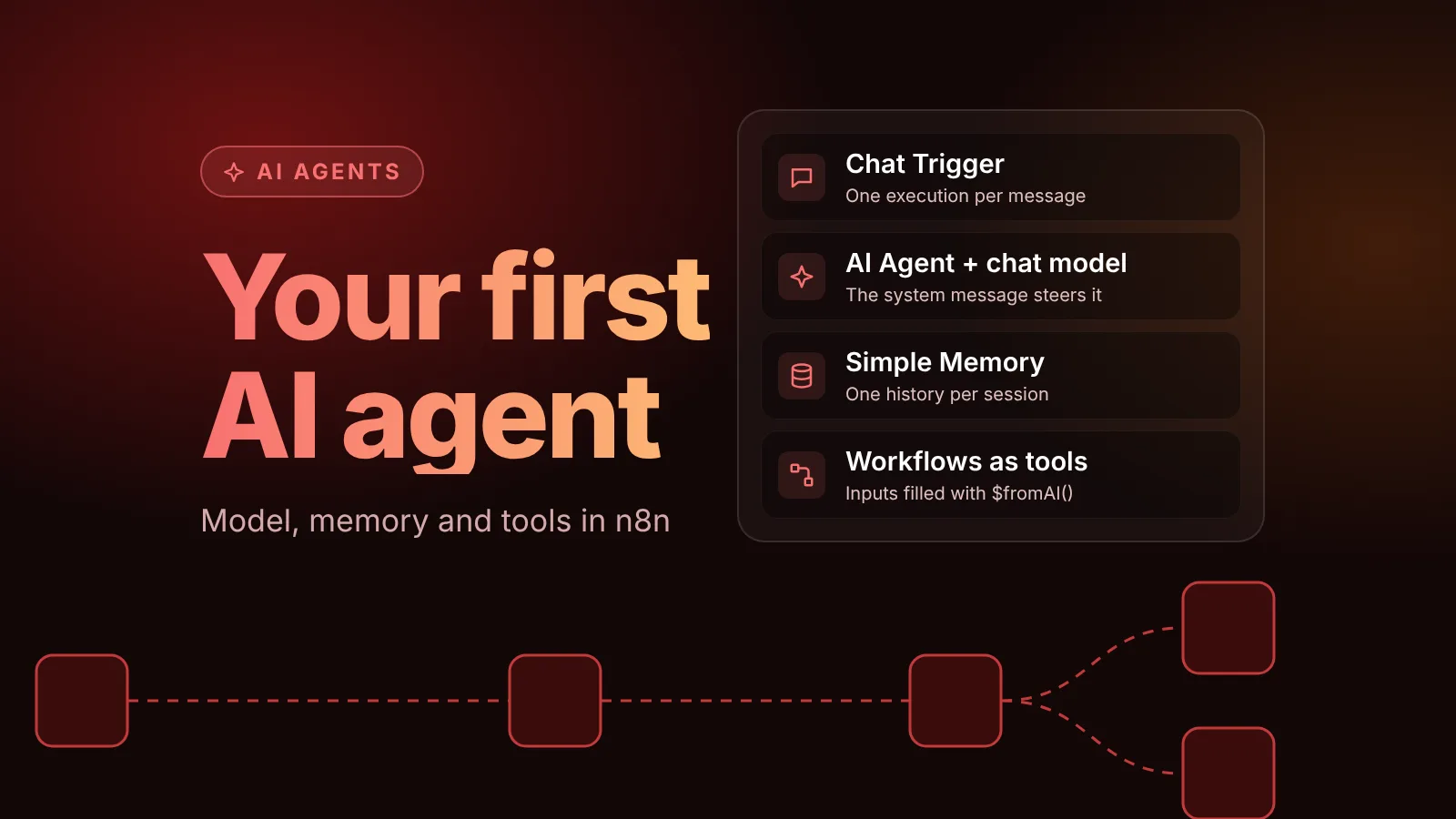
To build an AI agent in n8n, connect a Chat Trigger to an AI Agent node, then attach three kinds of sub-nodes to the agent: a chat model (the LLM that decides what to do), a memory (so it remembers the conversation) and one or more tools (the actions it can take). The system message tells the agent its job and when to use each tool.
This guide builds a small support agent that looks up orders through a sub-workflow and does math with the Calculator tool. We built and ran it on n8n 2.43.7 on October 18, 2026, and every reply quoted below is what the agent actually answered.
The short version
- Nodes: Chat Trigger, AI Agent, a chat model, Simple Memory, and tools such as Calculator and Call n8n Workflow Tool.
- The system message does the steering. Say what the agent is for, which tool to use when, and what it must not guess.
- Tool descriptions matter. The model picks tools by their name and description, and fills tool inputs with
$fromAI(). - Memory is per session. Simple Memory keys the history on the chat's session ID, so each conversation has its own.
- Check the executions. They show which tools the agent called and with what input, which is how you find out it skipped one.
- Each chat message is one execution. Plan for that on n8n Cloud and other plans with execution limits.
What you will build
The support agent: Chat Trigger, AI Agent, a chat model, Simple Memory and two tools
Nodes (6)
- AI Agent
- Chat Trigger
- Lm Chat Ollama
- Simple Memory
- Tool Calculator
- Tool Workflow
Credentials you'll need
- Ollama API
To import: copy the JSON, open a workflow in n8n and paste onto the canvas (Ctrl+V or ⌘V). Credentials are never included; connect your own after importing.
| Node | Role |
|---|---|
| When chat message received (Chat Trigger) | Starts the workflow for every chat message and passes chatInput and sessionId to the agent. |
| AI Agent | Runs the loop: sends the conversation and tool list to the model, calls the tools the model asks for, and returns the final answer. |
| Ollama Chat Model | The LLM. Any chat model sub-node works here: OpenAI, Anthropic, Gemini, Mistral and others. |
| Simple Memory | Keeps the last few exchanges of each conversation. |
| Calculator | A built-in tool for arithmetic. |
| get_order_status (Call n8n Workflow Tool) | Runs a sub-workflow that looks up an order. This is how you give an agent access to your own systems. |
Before you start
- n8n 2.x. In 2.43.7 the AI Agent node is at version 3.1. n8n's docs say the old v1 node, the one with an agent type setting, is removed in n8n 3.0, so build with the current node.
- A chat model credential. For a hosted model you need an API key from the provider, for example OpenAI or Anthropic. We tested with a local model,
qwen2.5:3bin Ollama, so no data left the test machine. With n8n and Ollama in the same Docker Compose network, the credential's Base URL washttp://ollama:11434. - A model that supports tool calling. The agent works by asking the model to call tools, so pick a model that supports it. Small local models work for testing, but they follow instructions less reliably, as the test below shows.
Step 1: Add a Chat Trigger
Create a workflow and add the Chat Trigger node (When chat message received). Leave Make Chat Publicly Available off while you build: n8n's Chat Trigger docs recommend turning it on only when you are ready to publish. You can test from the editor's chat panel in the meantime.
The trigger outputs the user's message as chatInput and a sessionId for the conversation. Both matter in the next steps.
Step 2: Add the AI Agent node and write the system message
Add an AI Agent node after the trigger. Keep Source for Prompt (User Message) set to Connected Chat Trigger Node, which reads chatInput automatically.
Then open Options > System Message. The default is "You are a helpful assistant." Replace it with instructions for this agent:
You are the support assistant for an online shop. Use the get_order_status
tool to look up orders; never guess an order's status. Use the calculator for
any arithmetic. Keep answers to two sentences.
A good system message names the agent's job, says which tool to use for what, and says what the agent must not make up. Two other options are worth knowing:
- Max Iterations (default
10): how many rounds of model calls and tool calls the agent may run before it stops. - Return Intermediate Steps: adds the tool calls the agent made to its output, which helps while debugging.
Step 3: Connect a chat model
Click the Chat Model connector under the agent and pick a model sub-node. For our test that was Ollama Chat Model with the model qwen2.5:3b. We set Sampling Temperature to 0 for more repeatable answers, and turned off Enable Thinking, because this model doesn't have a separate reasoning mode.
With OpenAI, Anthropic or another provider, the steps are the same: create the credential with your API key and select the model.
Step 4: Add Simple Memory
Without memory, every message starts a new conversation. Click the Memory connector and add Simple Memory:
- Session ID: Connected Chat Trigger Node, so each chat session gets its own history.
- Context Window Length:
5, the number of previous interactions the agent sees.
Simple Memory is the easiest way to start, but n8n's Simple Memory docs warn that it doesn't work in an active production workflow if your instance runs in queue mode, because n8n can't guarantee every call reaches the same worker. For queue mode, use a database-backed memory such as Postgres Chat Memory or Redis Chat Memory.
Step 5: Give the agent tools
An agent without tools can only talk. n8n's AI Agent docs say you must connect at least one tool. We added two.
Calculator
Click the Tool connector and add Calculator. It needs no settings.
Your own logic as a tool: Call n8n Workflow Tool
The most useful tool is often another workflow, because it can do anything a workflow can: query a database, call your API, read a spreadsheet. First, create the sub-workflow. Ours starts with When Executed by Another Workflow, with one input field, orderId (a string), followed by a Code node that stands in for a real order system:
// Stand-in for your real order system
const orders = {
  '1042': { status: 'shipped', carrier: 'UPS', eta: '2026-10-21' },
  '1043': { status: 'processing', carrier: null, eta: '2026-10-24' },
};
const id = String($input.first().json.orderId).replace(/\D/g, '');
const order = orders[id];
return [{ json: order ? { orderId: id, ...order } : { orderId: id, error: 'Order not found' } }];
Then, in the agent workflow, add Call n8n Workflow Tool as a tool:
- Name the node
get_order_status. The model sees this name. - Set Description to
Look up the status, carrier and delivery date of an order by its order number. - Under Workflow, select the sub-workflow.
- Under Workflow Inputs, set
orderIdto an expression that lets the model fill it in:
{{ $fromAI('orderId', 'The order number, for example 1042', 'string') }}$fromAI() takes a key, an optional description, a type and a default value. Per n8n's docs, the arguments are "hints that the AI model will use to populate the right data," not references to existing fields. You can also click the star icon button at the end of a tool parameter to let the model fill it in without writing the expression yourself.
The returned item becomes the tool result the model reads. Returning a clear error field, as above, lets the agent tell the user what went wrong instead of guessing.
Step 6: Test the agent
Open the chat in the editor and send a few messages. These are the real exchanges from our test, with the tools each message triggered:
| Session | Message | Agent reply | Tools called |
|---|---|---|---|
| A | Hi, what is the status of order 1042? | "The order 1042 has been shipped and the carrier used is UPS. The expected time of arrival (ETA) is October 21, 2026." | get_order_status with {"orderId": "1042"} |
| A | When will it arrive? | "The expected time of arrival (ETA) for the order 1042 is October 21, 2026." | None (answered from memory) |
| B | When will it arrive? | "Could you please provide me with the order number so I can look up the delivery status for you?" | None (new session, no memory) |
| C | Where is order 9999? | "It seems that the order with the number 9999 could not be found in our system. Please check the order number and try again." | get_order_status with {"orderId": "9999"} |
| D | What is 1234.56 multiplied by 78.9? | "The result of multiplying 1234.56 by 78.9 is 97406.784." | Calculator with 1234.56 * 78.9 |
| A | I want 3 more items at 19.90 each. What is the total? | "The total for 3 items at 19.90 each is 59.70." | None |
The last row is the lesson. The answer is right, but the agent did the math itself even though the system message says to use the calculator. A system message steers the model; it doesn't force it. Smaller models skip instructions more often, so check what your agent actually did:
- Open Executions and select a run.
- Select the tool node, for example Calculator or get_order_status. If it ran, you see the input the model sent and the result it got back.
- If a tool that should have run didn't, tighten the system message and the tool description, or try a stronger model.
The AI Agent node also has a Force Tool Call on First Iteration option. Its description in n8n says it is "useful for smaller models that otherwise skip tool calls," and that "the model must support forced tool choice." With our Ollama model, turning it on made the agent return an empty answer for the same question, so test it with your model before you rely on it.
Publish the chat safely
When the agent works, publish the workflow. To use n8n's hosted chat page, turn on Make Chat Publicly Available in the Chat Trigger and choose:
- Mode: Hosted Chat for n8n's chat page, or Embedded Chat to call the Chat URL from your own interface or n8n's chat widget.
- Authentication: None means anyone with the URL can use your agent, and your model provider bills you for every message. Use Basic Auth or n8n User Auth unless the chat is meant to be public.
The Chat Trigger docs also note that "every message to the Chat Trigger executes your workflow," so a 10-message conversation uses 10 executions.
For actions with consequences, such as sending emails or changing records, n8n can pause before a tool runs and ask a person to approve it. The Tools Agent docs describe this as Human review, set up from the tool connector, with approval through chat, Slack, Telegram and other channels.
Common AI Agent errors and fixes
These come from n8n's AI Agent common issues page.
"A Chat Model sub-node must be connected"
The agent has no model. Click the Chat Model connector under the AI Agent node and add one.
"No prompt specified"
The agent expects chatInput from a Chat Trigger but didn't get it, for example because the workflow starts with a different trigger. Set Source for Prompt (User Message) to Define below and build the prompt with an expression.
"400 Invalid value for 'content': expected a string, got null"
The prompt is empty: an expression in the prompt returned nothing, or the incoming chat data has null values. Check the expression against the input data.
"Error in sub-node Simple Memory"
Usually an old version of the node, for example from a copied template. Delete the Simple Memory node and add it again.
Next steps
- Connect an agent to external tools over MCP, or expose your own workflows to Claude and other clients: how to use MCP with n8n.
- The expressions behind
$fromAI()and tool inputs: our n8n expressions cheat sheet. - Run Ollama next to n8n on your own server: self-host n8n with Docker Compose.
- More agent guides: the AI agents tag.
Sources
Editorial team
The then8nblog editorial team researches every article from n8n's release notes, documentation and source code, states the n8n version each guide was tested on, and has every post reviewed by a human editor before it goes live.