n8n Agents explained: how they differ from the AI Agent node
n8n Agents are a new Preview feature: standalone agents with tools, skills, memory, channels and schedules. How they work and when to use the AI Agent node.
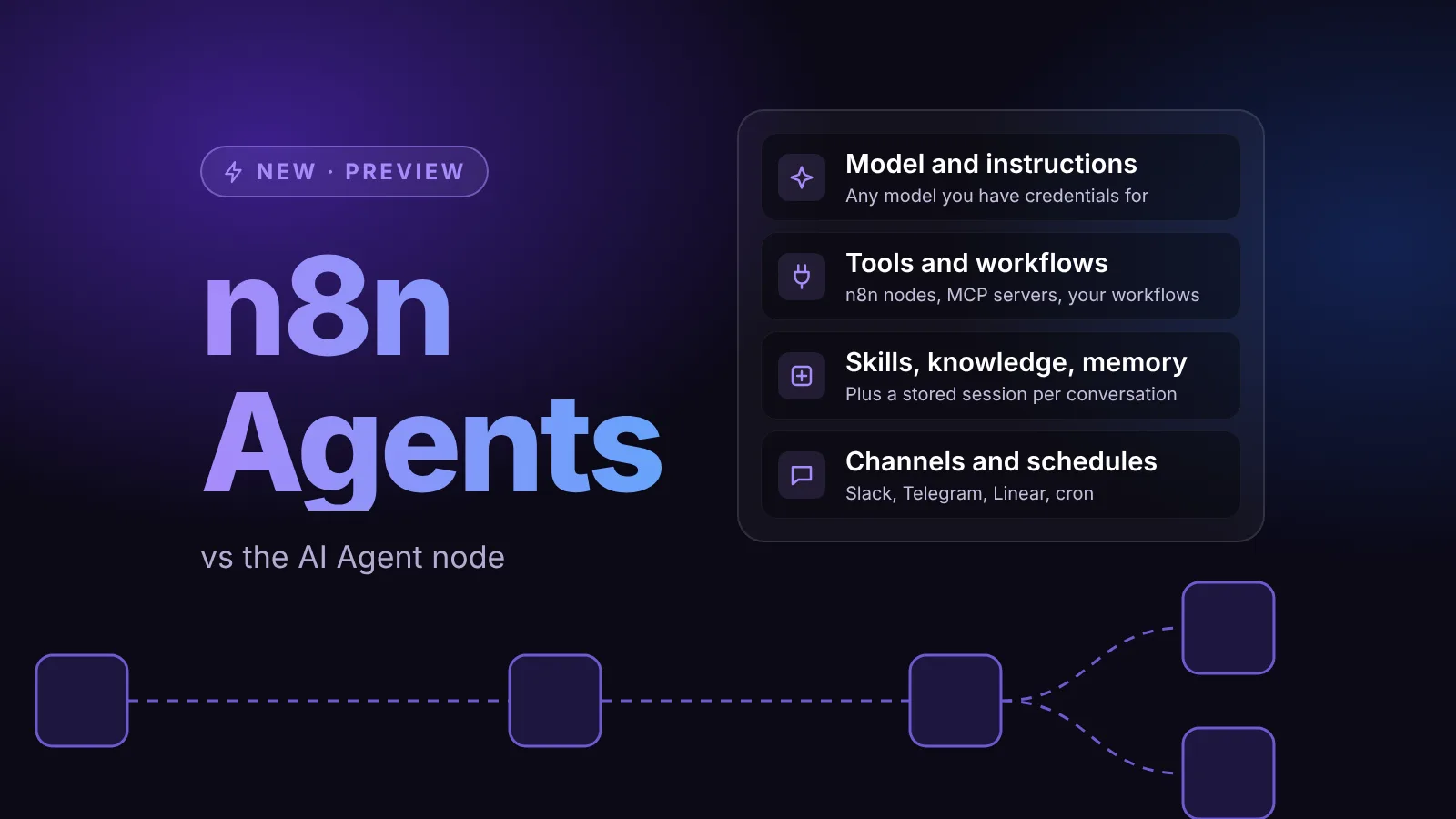
n8n Agents are standalone AI assistants you build in a new Agents tab, next to your workflows. Each agent has a model, instructions, tools, skills, memory and a stored session for every conversation, and you can publish it to Slack, Telegram or Linear, run it on a schedule, or call it from a workflow. It is a separate feature from the AI Agent node, which hasn't changed and still runs as a step inside a workflow.
n8n announced Agents in its changelog on September 21, 2026, alongside n8n 2.40. The feature is in Preview: n8n says agents "can make mistakes, and their behavior may change while the feature is in development."
The short version
- What it is: an agent you configure once in the Agent Builder and reach from many places: a chat panel, channels, schedules, workflows and MCP clients.
- Who gets it: all n8n Cloud plans, and all self-hosted plans from n8n 2.32.3. It is on by default.
- How it is billed: one turn (you send a message, the agent answers) counts as one execution, from the same quota as your workflows. According to the changelog, calls to workflow tools and sub-agents don't count separately.
- What stays the same: the AI Agent node. Everything you built with it keeps working.
- Biggest self-hosting caveat: queue mode isn't supported for agents yet.
Agents vs the AI Agent node
Both run a reasoning loop: the model reads the request, decides whether to call a tool, and repeats until it has an answer. The difference is where the agent lives and how people reach it.
| Question | Agents (Agents tab) | AI Agent node |
|---|---|---|
| Where it lives | Its own item in a project, alongside workflows | A node inside one workflow |
| How it is triggered | Chat panel, Slack, Telegram, Linear, schedules, the Message an Agent node, MCP | The workflow's trigger (Chat Trigger, Webhook, Schedule Trigger and so on) |
| Configuration | Agent Builder: model, instructions, tools, skills, knowledge, memory, sub-agents | Sub-nodes: a chat model, memory and at least one tool |
| Versioning | Draft and published versions, publish history, revert | Follows the workflow it belongs to |
| Conversations | Every conversation is stored as a session you can review, including tool calls | Depends on the memory sub-node you connect |
| Status | Preview | Stable, unchanged by this release |
A simple rule: if the job is a fixed sequence of steps with one AI decision in the middle, keep using a workflow with the AI Agent node. If the job is open-ended, where "the next step depends on the last answer" (n8n's examples are a multi-turn Slack question, a support ticket and a new GitHub issue), an agent is the better fit.
The two also work together. An agent can use any workflow in the same project as a tool, and a workflow can call an agent with the Message an Agent node.
What an agent is made of
You configure each agent in the Agent Builder. According to n8n's agent docs, an agent has these parts:
- Model: any provider and model you have credentials for. The changelog adds that you can also pay with Gateway credits.
- Instructions: the system prompt with the agent's role, tone and limits.
- Tools: built-in n8n integrations (Slack, Google Sheets and so on), workflows from the same project, custom tools defined with a JSON schema, and MCP servers.
- Web search: uses the model's native search tool if it has one, otherwise Brave Search or a self-hosted SearXNG instance.
- Skills: named bundles of instructions plus the tools for one task. The agent picks a skill based on its description.
- Knowledge: CSV, PDF, Markdown and TXT files the agent can search.
- Memory: session memory is on by default. Episodic memory recalls earlier sessions and needs an OpenAI credential.
- Sub-agents: other published agents this one can hand work to, each with a When should this agent be used? description.
- Channels and schedules: take effect only after you publish.
Workflow tools are the interesting part for teams. In n8n's words, the workflow "runs the way you built it, with its own credentials." So an agent can add a note to your CRM through a workflow without having write access to the CRM itself.
Build and publish your first agent
- Open your project in the left menu and go to the Agents tab.
- Select Create Agent. If n8n Assistant is set up, you can describe the agent and let it draft one; otherwise the Agent Builder opens with a blank draft.
- Enter a name, pick a model under Model, and write the Instructions. Both fields are required.
- Add tools with Add tool. For any tool that writes to your systems, require approval: the agent then pauses and asks you to Approve or Reject the call.
- Select Preview to chat with the draft. If Preview is disabled, n8n lists the configuration errors to fix.
- Select Publish.
Publishing takes a snapshot of the draft. Your edits keep saving to the draft without touching the live version, and every place the agent is connected gets the update when you publish again. To go back, use Revert changes from the publish menu, or restore an earlier version from the publish history.
Reach an agent from Slack, schedules and workflows
Channels. Open the Channels section to connect Slack, Telegram or Linear (the changelog also lists Discord). Each channel has its own connection and permission model.
Schedules. Add a task in Schedules, describe what the agent should do, and pick hourly, daily, weekly, monthly or a custom cron. Schedules always run the published version.
Workflows. The Message an Agent node sends a message to an agent and passes the reply to the next node. A few details worth knowing:
- Manual and chat executions use the agent's draft; production executions use the published version. Publish after every change, or production keeps the old behavior.
- The agent must be in the same project as the workflow. If the Agent list is empty, that is why.
- Turn on Require Specific Output Format to get a
structuredOutputobject that matches a JSON schema. Support depends on the model provider; mark every property as required for the best results. - Set Session ID to Define below and use a key like
{{ $json.customerId }}so one customer's runs share a conversation. Keys can be at most 74 characters. - The reply is in
text(version 1 of the node usedresponse).
The node also exists as Message an Agent Tool, so an AI Agent node in a workflow can hand work to one of your agents.
MCP clients. n8n's instance-level MCP server now includes tools to search, create and configure agents from clients such as Claude Desktop or Claude Code. If you connected a client before agents existed, reconnect it under Settings > Instance-level MCP to get the new permissions.
Self-hosted setup
Agents are on by default on self-hosted n8n from 2.32.3. An owner or admin can turn them on or off in Settings > Agents. Turning them off stops new runs but keeps saved agents and their sessions, and doesn't affect the AI Agent node.
The basics need no configuration. A few features need more, according to n8n's self-hosted setup page:
# Knowledge base: needs a configured sandbox (Preview on self-hosted)
N8N_AGENTS_AI_SANDBOX_ENABLED=true
N8N_INSTANCE_AI_SANDBOX_PROVIDER=daytona

# Channels such as Slack, Telegram and Linear need a public HTTPS URL
N8N_WEBHOOK_URL=https://<your-domain>N8N_WEBHOOK_URLis available from n8n 2.30.0. On older versions, useWEBHOOK_URL.- The
agentsmodule loads by default. If you listed it inN8N_DISABLED_MODULES, remove it and restart n8n. - AI-assisted building ("describe an agent and n8n scaffolds it") needs n8n Assistant (the
instance-aimodule) to be set up as well.
Should you use agents in production yet?
Agents are a Preview feature, so treat them like one. n8n itself recommends that you "test before you publish, and require approval on tools that write to your systems." Good first uses are internal ones: a Slack helper that answers questions from your docs, or a scheduled agent that drafts a daily summary for a human to check.
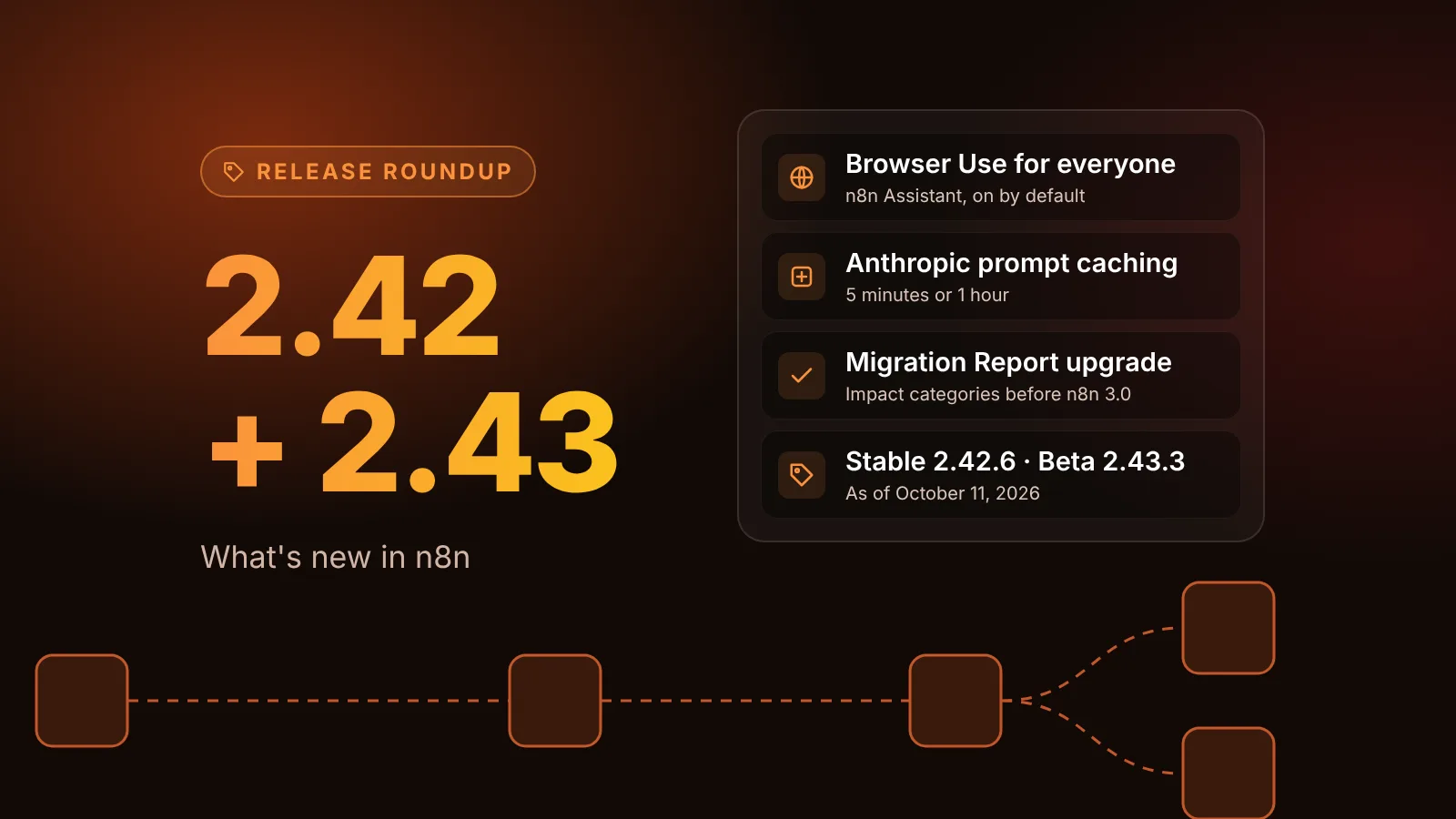
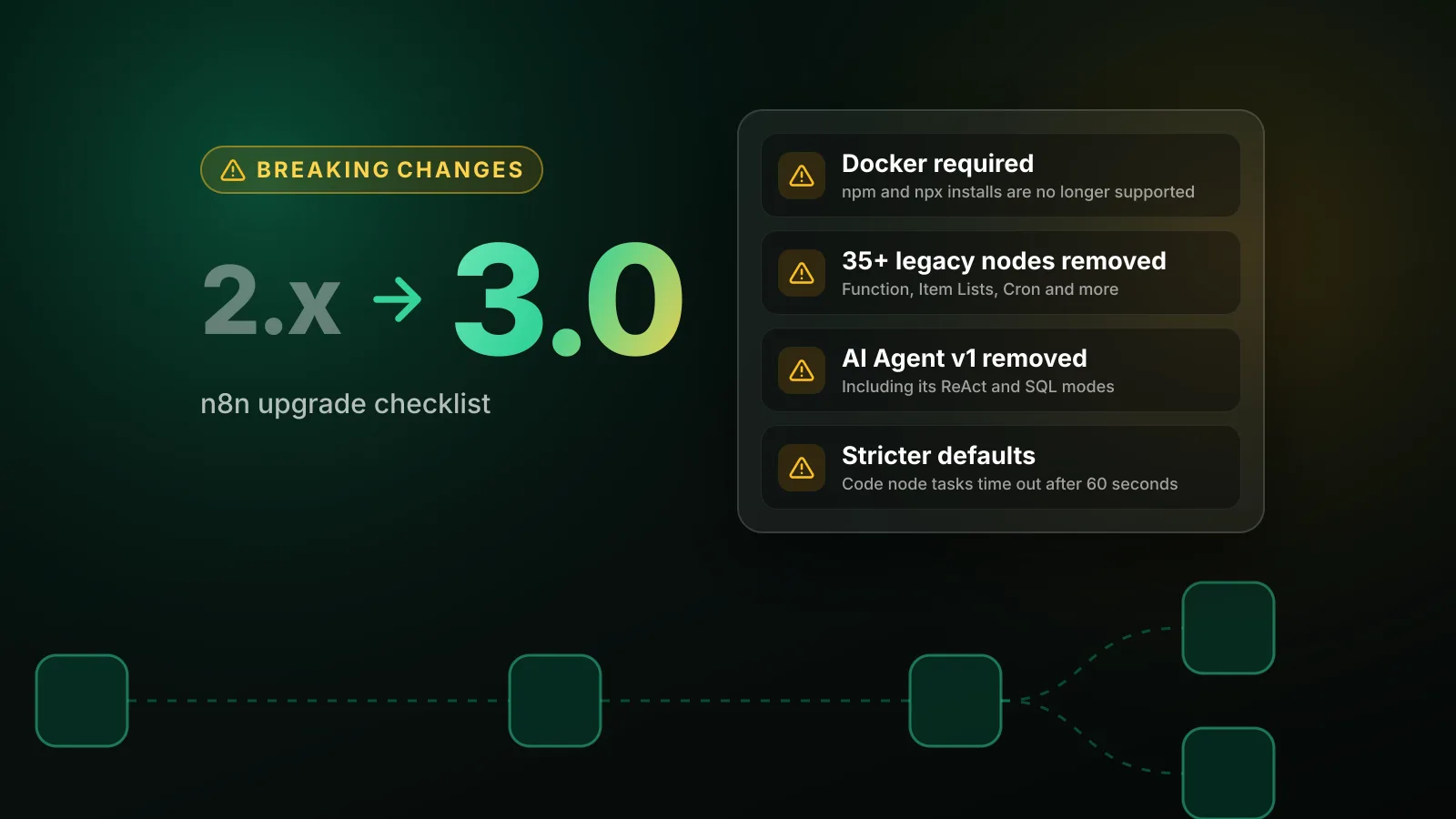
For customer-facing or high-volume automations, a workflow with the AI Agent node is still the safer choice today. It is stable, it works in queue mode, and it will keep working. If you still run version 1 of the AI Agent node, note that it is removed in n8n 3.0; our n8n 3.0 breaking changes guide covers what to change. For the latest agent-related changes, see our n8n 2.42 and 2.43 roundup, and browse all AI agent posts.
Sources
Editorial team
The then8nblog editorial team researches every article from n8n's release notes, documentation and source code, states the n8n version each guide was tested on, and has every post reviewed by a human editor before it goes live.