Website uptime monitor in n8n with Telegram alerts
A tested n8n workflow that checks your sites every 5 minutes, confirms a failure before it alerts, and messages Telegram when a site goes down or recovers.
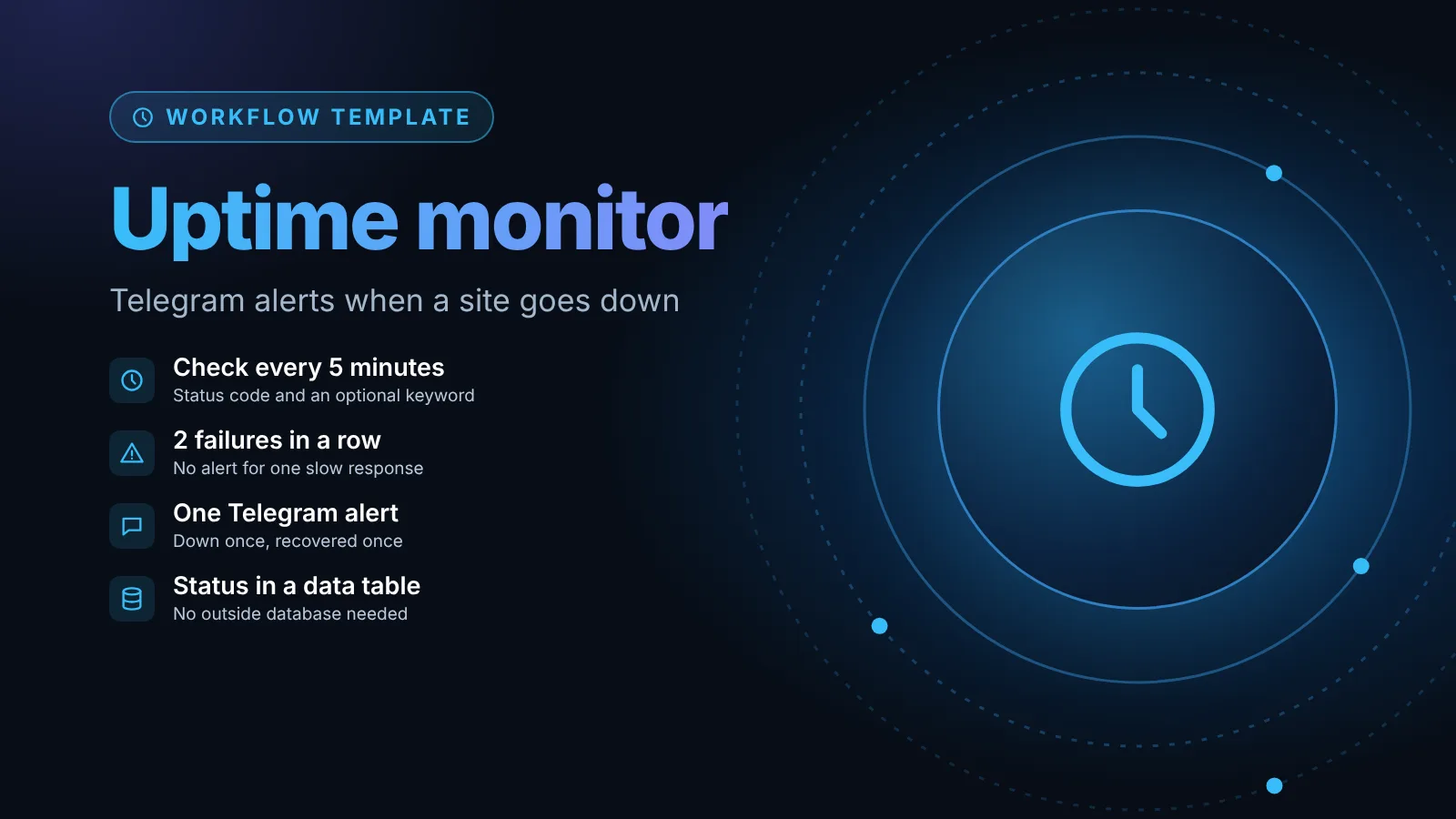
Workflow: Website uptime monitor in n8n with Telegram alerts
Nodes (9)
- Data Table ×2
- Code
- Edit Fields
- Filter
- HTTP Request
- Schedule Trigger
- Split Out
- Telegram
Credentials you'll need
- Telegram API
To import: copy the JSON, open a workflow in n8n and paste onto the canvas (Ctrl+V or ⌘V). Credentials are never included; connect your own after importing.
This n8n workflow checks a list of websites and API endpoints every 5 minutes and sends a Telegram message when one goes down and again when it recovers. A site only counts as down after two failed checks in a row, so a single slow response doesn't wake you up, and you get one alert per outage instead of one every 5 minutes. It needs one Telegram bot and one n8n data table, and no other services.
The short version
- What it checks: each URL answers with a 2xx status within 10 seconds (redirects are followed), and optionally that the page contains a word you choose (for example
okon a health endpoint). - When it alerts: after 2 failed checks in a row (configurable), then once more when the site is back, with how long it was down.
- What it stores: the last status of every URL in an n8n data table called
uptime_status, so it can tell a new outage from an ongoing one. - What you need: n8n with data tables (added in 1.113), a Telegram bot and your chat ID. Tested on n8n 2.39.8.
- Setup time: about 10 minutes.
Website uptime monitor with Telegram alerts
Nodes (9)
- Data Table ×2
- Code
- Edit Fields
- Filter
- HTTP Request
- Schedule Trigger
- Split Out
- Telegram
Credentials you'll need
- Telegram API
To import: copy the JSON, open a workflow in n8n and paste onto the canvas (Ctrl+V or ⌘V). Credentials are never included; connect your own after importing.
How the workflow works
The workflow has 9 nodes. Here is what each one does and why it's there.
- Every 5 minutes (Schedule Trigger) starts a run. Change the interval to suit your sites.
- Load last status (Data table, Get with Return All) reads the row each URL got on the previous run. It has Always Output Data turned on, so the very first run, with an empty table, still continues.
- Sites to check (Edit Fields (Set), JSON mode) holds all your settings in one place: the Telegram chat ID, how many failures count as down, and the list of sites. It has Execute Once on, so it runs once no matter how many rows the table returned.
- One item per site (Split Out) turns the
siteslist into one item per URL. - Check site (HTTP Request) sends a
GETto each URL with Include Response Headers and Status on, Response Format set to Text and a Timeout of 10000 ms. Its On Error setting is Continue, so a 500 or a DNS failure becomes data for the next node instead of stopping the run. - Compare with last run (Code) decides whether each check passed, counts consecutive failures, and works out whether the status changed. It also writes the alert text.
- Save status (Data table, Upsert, matched on
url) stores the new status, failure count, detail and the time of the last change. - Status changed? (Filter) keeps only the sites whose status flipped from up to down or back.
- Send Telegram alert (Telegram, Send Message) sends one message per change.
The comparison lives in a Code node because n8n's docs say a Code node can't read data tables directly. The workflow loads the rows with a Data table node first, and the Code node reads them with $('Load last status').all(). If that syntax is new to you, the n8n expressions cheat sheet covers $('Node') references.
What the alerts look like
A down alert names the site, the URL, what failed and how many checks failed:
DOWN: API health check
https://api.example.com/health
getaddrinfo ENOTFOUND api.example.com
Failed 2 checks in a row
The detail line is HTTP 500 (or whatever status came back) for server errors, the network error for DNS failures and timeouts, and HTTP 200, but the page does not contain "ok" when the keyword check fails. When the site answers again you get:
RECOVERED: API health check
https://api.example.com/health
Down for about 15 min
The workflow turns off the Telegram node's Append n8n Attribution option, so the messages don't end with "This message was sent automatically with n8n".
Credentials you need
- Telegram API: a bot token from Telegram's BotFather, saved as a Telegram credential in n8n (the token goes in Access Token). The workflow references it as
Telegram account; pick yours in the Send Telegram alert node after import.
The HTTP Request node uses no credentials, so it only checks public URLs. To check a protected endpoint, add authentication to the Check site node.
Set it up
- Create the data table. In your project, open the Data tables tab and create a table named
uptime_statuswith these columns:url(string),status(string),failures(number),detail(string) andchangedAt(date). Both Data table nodes find the table by that name. - Import the workflow. Copy the JSON above (or download it) and paste it onto an empty canvas.
- Add your Telegram credential to the Send Telegram alert node.
- Find your chat ID. n8n's docs list three ways to get it, including running a Telegram Trigger node and reading the chat ID from its output. Group chat IDs start with
-. - Edit the Sites to check node. Replace the placeholders with your chat ID and your URLs:
{
  "telegramChatId": "<your-chat-id>",
  "alertAfterFailures": 2,
  "sites": [
    { "name": "Website", "url": "https://www.example.com", "mustContain": "" },
    { "name": "API health check", "url": "https://api.example.com/health", "mustContain": "ok" }
  ]
}- Test it. Click Execute workflow. Every site should land in the
uptime_statustable. To see an alert, add a URL that fails and run the workflow twice. - Publish the workflow. The Schedule Trigger only fires on its own once the workflow is saved and published.
Customize it
- Alert faster or slower.
alertAfterFailures: 1alerts on the first failure. With the 5-minute schedule, the default of 2 means an outage is reported 5 to 10 minutes after it starts. - Check for content, not just a status code. A page can return 200 and still be broken (an empty template, a maintenance page). Set
mustContainto a word that only appears when the page works. - Send alerts elsewhere. Swap the Telegram node for Slack, email or Discord. The message text is in
{{ $json.message }}and uses Telegram's HTML formatting (<b>DOWN</b>), so remove the tags if your channel doesn't support HTML. - Keep a history. Add a second data table and an Insert after Status changed? to log every outage with its start and end time.
- Watch many sites. If you check dozens of URLs, use Options > Batching in the Check site node to set Items per Batch and a Batch Interval so the requests don't all go out at once.
Known limits and failure modes
- It can't watch itself. If your n8n instance is down, so is the monitor. Run it on a different server from the sites it watches, and use an outside service to watch the n8n instance itself. If you want a second instance for that, the Docker Compose guide walks through a self-hosted setup.
- List each URL once. The status is stored per URL, so two entries with the same URL overwrite each other. Add a query string (
?check=2) if you need two checks on one page. - Old rows stay. When you remove a site from the list, delete its row in
uptime_statustoo. Otherwise the table keeps its last status. - A failed alert isn't retried. The status is saved before the Telegram message goes out. If Telegram rejects the message (for example "chat not found" from a wrong chat ID), the run fails, and the next run sees no change and stays quiet. Set an error workflow in Workflow Settings so a failed run reaches you another way.
- Storage. Data tables share a default limit of 200 MiB per instance, which self-hosted users can change with
N8N_DATA_TABLES_MAX_SIZE_BYTES. This workflow stores one small row per URL, so it won't come close. - Response time isn't measured. A site that answers in 9 seconds counts as up. Lower the Timeout if slow responses should count as failures.
- Upgrading to n8n 3.0. n8n 3.0 changes Always Output Data only for nodes with several outputs, such as If and Switch. The Data table node here has one output, so the change doesn't affect it. See n8n 3.0 breaking changes for the full list.
Related
- How to update self-hosted n8n safely, since an upgrade is a common reason for a short outage.
- More workflows for real jobs are under the use cases tag.
Sources
- Data table node (n8n docs)
- Data tables (n8n docs)
- n8n 1.113.1 release notes, data tables (n8n docs)
- HTTP Request node (n8n docs)
- Node settings (n8n docs)
- Schedule Trigger node (n8n docs)
- Telegram node message operations (n8n docs)
- Telegram node common issues, get the Chat ID (n8n docs)
- Telegram credentials (n8n docs)
- n8n 3.0 breaking changes (n8n docs)
- Error handling (n8n docs)
Editorial team
The then8nblog editorial team researches every article from n8n's release notes, documentation and source code, states the n8n version each guide was tested on, and has every post reviewed by a human editor before it goes live.