How to update self-hosted n8n safely: back up, test, roll back
Update self-hosted n8n without losing data: back up the n8n volume, database and encryption key, pin the new version, test it, and roll back if it fails.
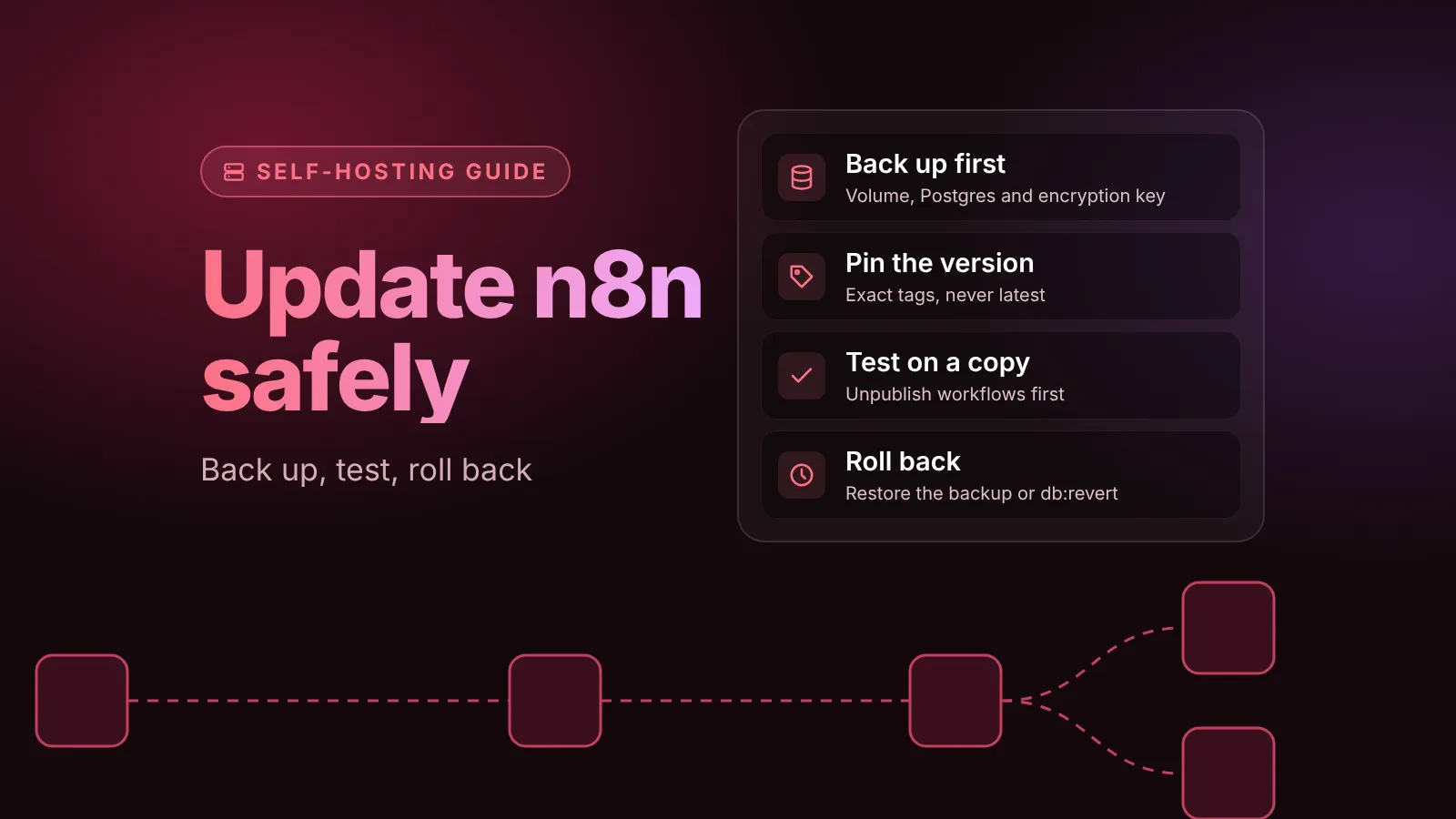
To update self-hosted n8n safely, take a full backup first (the n8n data volume, your Postgres database and the encryption key), change your Docker Compose file to the exact new version, then run docker compose pull and docker compose up -d. If the new version misbehaves, the reliable way back is to restore that backup and pin the old version again. n8n also has a db:revert command for undoing database migrations.
Most failed updates don't come from n8n itself. They come from skipped backups, moving image tags like latest, or Postgres being upgraded at the same time. This guide covers each step for Docker Compose, the setup n8n recommends, with notes for npm installs.
The short version
- Pick the version: use the current
stablerelease for production. On October 14, 2026 that is 2.43.5;betais 2.44.1. - Pin it: set an exact tag such as
n8nio/n8n:2.43.5, neverlatestorstable. - Back up the
.n8nvolume, the Postgres database and your deployment config, with n8n stopped. - Read the release notes for every version you skip, and run Settings > Migration Report before a major version.
- Update:
docker compose pull, thendocker compose up -d, and watch the logs while migrations run. - Check: the
/healthzendpoint, the version under Help > About n8n, and your next few executions. - Roll back by restoring the backup into the old version. Use
n8n db:revertonly when you know which migrations to undo.
Before you update: pick the version and read what changed
n8n ships a new minor version most weeks, on two channels. In n8n's release tracks description, Beta gets new releases "as soon as they're ready," while Stable is "a later, more proven patch of a release, cut after it's spent time on the Beta track." n8n recommends Stable "for all mission-critical workloads."
Check the current versions before you start:
npm view n8n dist-tagsThe stable and beta tags exist on both npm and Docker Hub. The older latest and next tags still point to the same releases, but n8n's 2.0 breaking changes page says they "will be removed in a future major version." The same page gives the recommendation this guide is built on: "Pin your n8n version to a specific version number."
Then read what changed between your version and the target. n8n's update page gives three tips:
- Update frequently, at least once a month, so you never have to jump many versions at once.
- Check the release notes for breaking changes.
- Test the update on a separate instance first.
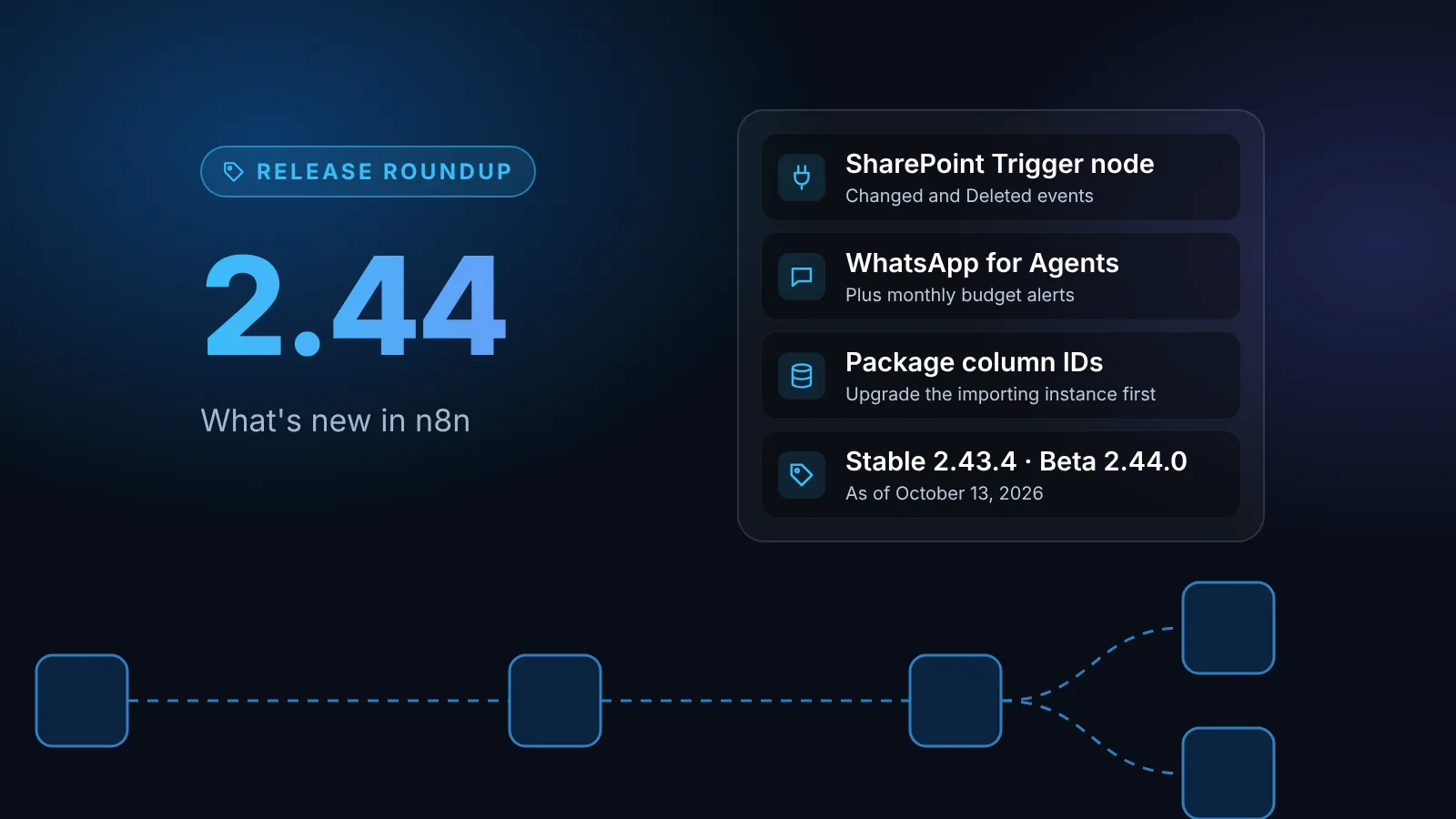
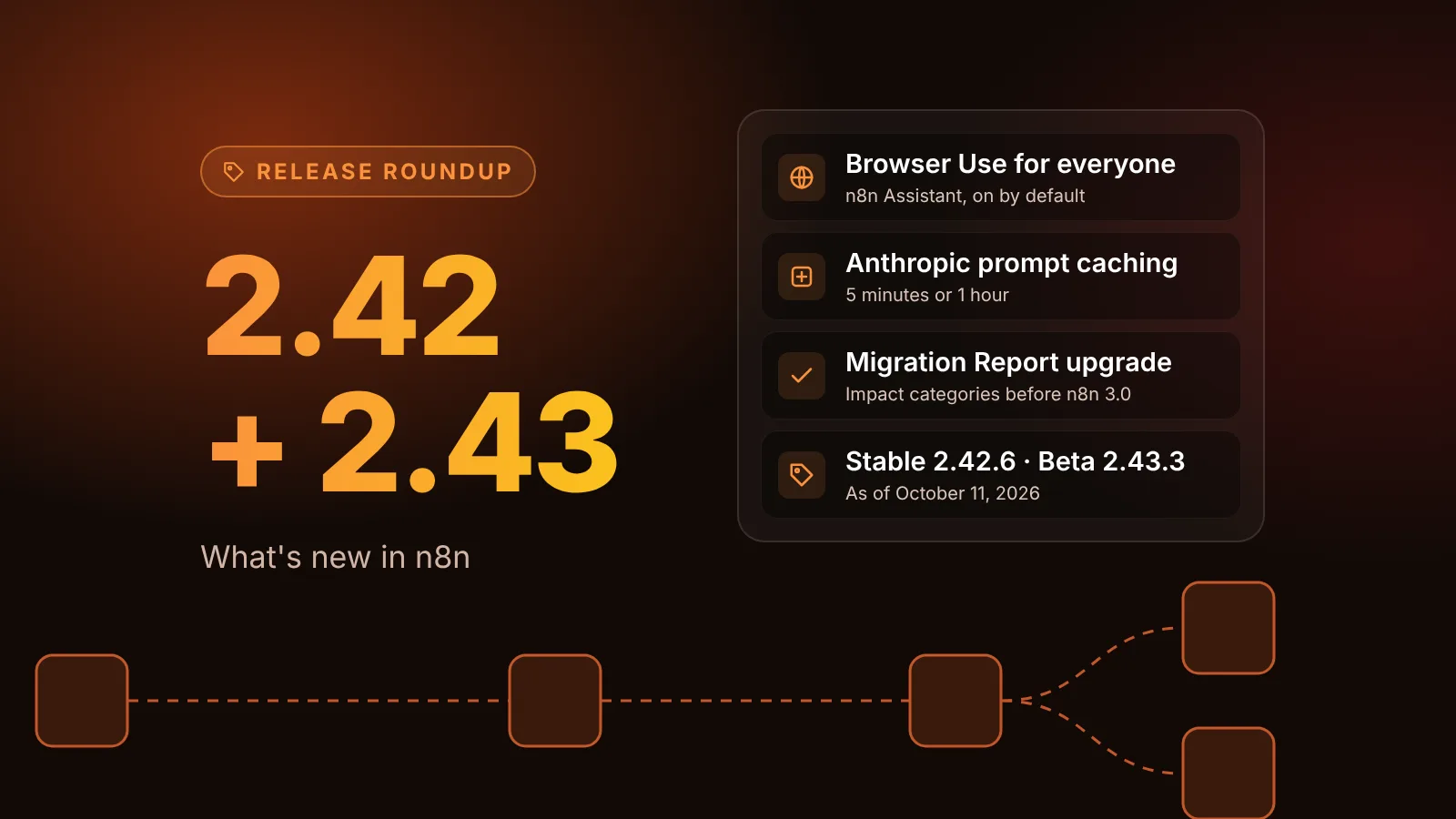
Our release roundups summarize each version and say which one to run in production. The latest is the n8n 2.44 roundup; if you are coming from 2.42 or earlier, read the 2.42 and 2.43 roundup too. All of them are under the releases tag.
Major versions need more preparation
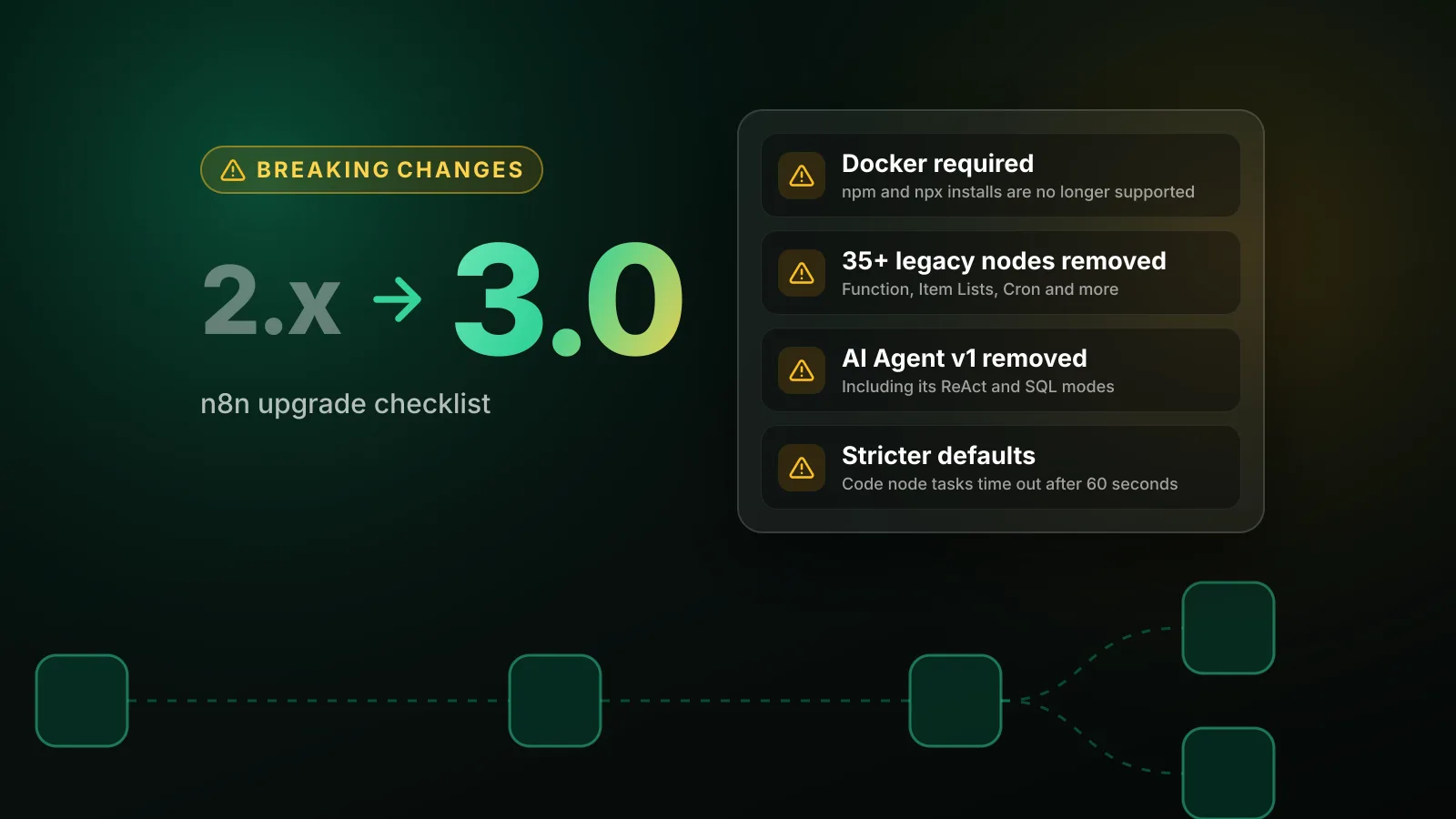
A major version (2.x to 3.0) removes nodes and changes defaults. Before one, open Settings > Migration Report in your current instance (global admins only). It lists the workflows and instance settings that will break, with a Critical, Medium or Low severity for each. For the next major, see n8n 3.0 release date, breaking changes and how to prepare. It also explains why npm installs have to move to Docker first.
Step 1: Pin your n8n version
If your Compose file says image: n8nio/n8n or n8nio/n8n:latest, your instance can update itself by accident. Any time the container is recreated after a pull, it starts whatever version the tag points to that day, and runs its database migrations. n8n's own install script avoids this on purpose: its source notes that installs stay pinned, "never a floating tag, which would silently upgrade (and run DB migrations) on any container recreate."
Pin the exact version in compose.yml:
services:
  n8n:
    image: docker.n8n.io/n8nio/n8n:2.43.5
If you installed with n8n's one-line setup (get.n8n.io) or copied n8n's Docker Compose guide, the image line reads n8nio/n8n:${N8N_VERSION} and the version lives in .env instead:
N8N_VERSION=2.43.5Do this now, before the update, and note the version you run today. That is the version you roll back to.
Step 2: Back up everything you need to restore
n8n's backup and restore page recommends a full backup before updating, and is specific about what "full" means:
| What to back up | Why |
|---|---|
The .n8n folder (the n8n_data or n8n-data volume in Docker, mounted at /home/node/.n8n) | It holds the config file with the credential encryption key. With SQLite it also holds the whole database. |
| Your Postgres database, if you use one | Workflows, credentials, users, settings and executions live here. Back it up with Postgres tools. |
Your deployment config: compose.yml, .env, and N8N_ENCRYPTION_KEY if you set it | A restored instance needs the same database settings and encryption key to read its data. |
External or custom storage: S3 or Azure binary data, custom filesystem paths, N8N_CUSTOM_EXTENSIONS folders | Without them, restored workflows reference files or nodes that don't exist. |
The encryption key matters most. n8n stores credentials encrypted, and in the docs' words a restored database "can't be decrypted" without the key that encrypted it.
Stop n8n before you copy anything. The docs warn that copying the SQLite file while n8n writes to it "can produce an inconsistent backup," and stopping n8n also keeps the volume and the database in step. Run these from the folder with your compose.yml:
# Stop n8n only; Postgres keeps running for the dump
docker compose stop n8n

mkdir -p backups

# Find the n8n volume name (Compose prefixes it with the project name, e.g. n8n_n8n-data)
docker volume ls

# 1. Archive the .n8n volume
docker run --rm -v <n8n-volume>:/data:ro -v "$PWD/backups":/backup alpine \
  tar czf /backup/n8n-data-$(date +%F).tgz -C /data .

# 2. Dump the Postgres database (skip with SQLite)
docker compose exec -T postgres sh -c 'pg_dump -U "$POSTGRES_USER" -d "$POSTGRES_DB"' \
  > backups/n8n-db-$(date +%F).sql

# 3. Keep a copy of the deployment config
cp compose.yml .env backups/   # or docker-compose.yml
Check that both files are not empty, then copy the backups folder off the server. A backup on the same disk doesn't help if the disk is the problem. The archive and .env contain your encryption key, so store them like credentials.
An extra safety net: export workflows and credentials
The n8n CLI can also export every workflow and credential as JSON:
docker compose run --rm -v "$PWD/backups":/backups n8n export:workflow --backup --output=/backups/workflows/
docker compose run --rm -v "$PWD/backups":/backups n8n export:credentials --backup --output=/backups/credentials/
This is useful for moving workflows to another instance, but it is not a full backup. The docs list what it leaves out: users and roles, execution history, variables and instance settings, including the encryption key. The exported credentials stay encrypted, so they still need the same key to import.
Step 3: Test the new version on a copy
The safest test is the new version running against a copy of your real data. You have two options.
n8n environments. If you are on a Business or Enterprise plan, n8n's Git-based source control and environments let you keep a separate staging instance. Update staging first and promote the change once your workflows pass.
A throwaway copy from your backup. On any plan, restore the backup from Step 2 into a separate Compose project, in another folder with its own volume and database. Before you start it, unpublish every workflow on the copy so its triggers don't fire, which would send emails twice or poll the same inbox:
# In the copy's folder, with the restored volume and database in place
docker compose run --rm n8n unpublish:workflow --all
Then set the new version in the copy, start it, and run your most important workflows by hand from the editor. Look for nodes marked as deprecated or removed, changed outputs, and errors in the logs. When you are done, delete the copy's volumes.
Skipping the test is a judgment call. For a patch release on the stable track, many teams update after a backup and watch the first executions. For a jump across several minor versions or a major version, test first.
Step 4: Update n8n with Docker Compose
With the backup done and n8n still stopped, change the pinned version to the target (in compose.yml or .env), then pull and restart. n8n's Docker docs use this sequence:
docker compose pull
docker compose down
docker compose up -d
docker compose down removes the containers but keeps named volumes, so your data stays. Never add -v, which deletes the volumes.
Watch the logs while n8n starts. If the release includes database migrations, they run now, before the editor becomes available:
docker compose logs -f n8nIf you installed with n8n's one-line setup, its script can do the version change and restart for you. It updates N8N_VERSION (and the sandbox service version) in .env, pulls images and restarts. It doesn't take a backup, so do Step 2 first. Run it from the folder where you first ran the installer (it looks for ./n8n unless you set N8N_DIR):
curl -fsSL https://get.n8n.io | sh -s -- --upgrade --version 2.43.5Without --version, it moves to the latest stable release.
Updating an npm install
For npm installs, the npm install docs use npm update -g n8n. To control the version, install an exact one instead, then restart n8n with your process manager:
npm install -g n8n@2.43.5Plan to move off npm: n8n 3.0 no longer supports npm or npx installs. The 3.0 guide covers the move to Docker. Make that move on your current 2.x version, not during the major upgrade.
Step 5: Check that the update worked
- Health endpoint.
curl -sf http://localhost:5678/healthzreturns success once n8n is up. - Version. In the editor, open Help > About n8n and confirm the new version.
- Credentials. Open a workflow that uses a credential and run it once. If n8n can't read credentials after an update or restore, the encryption key doesn't match the one that encrypted them.
- Triggers and executions. Check that published workflows are still published, and watch the Executions list until your schedules and webhooks have run at least once.
Keep the backup until you are sure everything works, at least a few days for workflows that run weekly.
How to roll back an n8n update
Option 1: Restore the backup (recommended)
Restoring the backup returns you to exactly the state before the update. You lose executions and edits made since then, which is usually little if you roll back soon after updating.
docker compose down

# Restore the .n8n volume
docker run --rm -v <n8n-volume>:/data -v "$PWD/backups":/backup alpine \
  sh -c 'find /data -mindepth 1 -delete && tar xzf /backup/n8n-data-<date>.tgz -C /data'

# Restore Postgres into an empty database (skip with SQLite)
docker compose up -d postgres
docker compose exec -T postgres sh -c 'dropdb -U "$POSTGRES_USER" "$POSTGRES_DB" && createdb -U "$POSTGRES_USER" "$POSTGRES_DB"'
docker compose exec -T postgres sh -c 'psql -U "$POSTGRES_USER" -d "$POSTGRES_DB"' < backups/n8n-db-<date>.sql
Then set the pinned version back to the one you ran before and start n8n with docker compose up -d. If your Postgres user can't drop databases, run the drop and create as the database superuser. The database has to be empty, not overwritten: tables added by the newer version's migrations would otherwise stay behind.
Option 2: Revert the database migrations with db:revert
n8n's npm docs describe a rollback without a backup: if the update included a database migration, check the release notes for manual changes, then "run n8n db:revert on your current version to roll back the database." Each run reverts one migration, so you repeat it once per migration you need to undo.
In Docker, run it with the newer version still pinned and n8n stopped, then pin the old version:
docker compose stop n8n
docker compose run --rm n8n db:revert   # repeat once per migration to undo
# set the old version in compose.yml or .env, then:
docker compose up -d
Use this only when you know which migrations the update added. If you aren't sure, restore the backup instead. Some releases also need manual steps before a revert. For example, n8n's 1.x release notes asked self-hosters to delete the RBAC projects they had created before running db:revert.
Common update problems and fixes
"database files are incompatible with server"
This is a Postgres error, not an n8n one. It appears when the Postgres image tag moves to a new major version (for example 16 to 18) while the data volume still holds the old format. n8n's Docker Compose guide notes that your data stays intact. Put the old Postgres tag back, finish the n8n update, and upgrade Postgres separately later with pg_dumpall and the PostgreSQL upgrade guide. Pin the Postgres tag for the same reason you pin n8n.
n8n updated even though you didn't update it
Your image tag is floating (n8nio/n8n, latest or stable). A docker compose pull, a server rebuild or a host tool that recreates containers pulled a newer version. Pin the exact version you want (Step 1), and restore the backup if the new version broke something.
Credentials fail after the update or a restore
n8n is using a different encryption key from the one that encrypted the credentials. This usually means the .n8n volume was recreated empty, so n8n generated a new key, or N8N_ENCRYPTION_KEY changed. Restore the original config file into the volume, or set the original N8N_ENCRYPTION_KEY.
Workflows fail on removed or changed nodes
You skipped a version with a breaking change. Check the release notes for every version between your old and new version, and on a major upgrade, work through Settings > Migration Report first. If you can't fix the workflows quickly, roll back and fix them on the old version.
Next steps
- Getting ready for the next major version: n8n 3.0 release date, breaking changes and how to prepare.
- Which version to run this week: n8n 2.44: what's new and should you upgrade.
- More on running n8n yourself: the self-hosting tag.
Sources
- Update self-hosted n8n (n8n docs)
- Back up and restore (n8n docs)
- Install with Docker, updating (n8n docs)
- Install with npm, reverting an upgrade (n8n docs)
- Install using Docker Compose (n8n docs)
- Use the command line (n8n docs)
- n8n 2.0 breaking changes, release channels (n8n docs)
- Update your n8n Cloud version, release tracks (n8n docs)
- get-n8n.sh install and upgrade script (n8n on GitHub)
- n8n package versions and dist-tags (npm)
Editorial team
The then8nblog editorial team researches every article from n8n's release notes, documentation and source code, states the n8n version each guide was tested on, and has every post reviewed by a human editor before it goes live.