Prune n8n execution data so your database stops growing
How n8n execution data pruning works: the defaults (14 days, 10,000 runs), the env vars to change, what to stop saving, and freeing SQLite disk space.
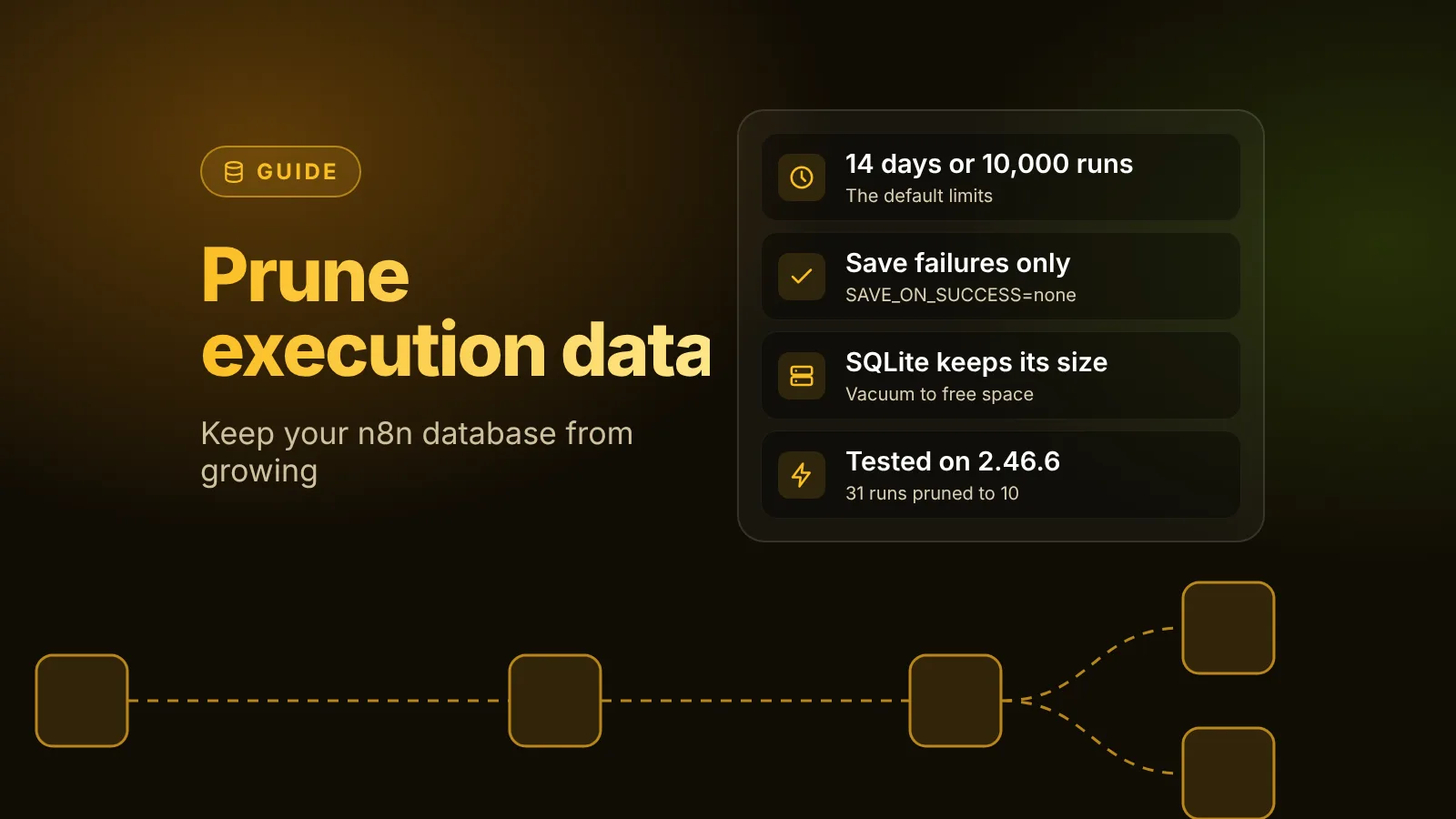
n8n prunes execution data by default: it deletes finished executions older than 14 days (336 hours) and keeps at most 10,000 of them, whichever limit is hit first. To keep your database smaller, lower EXECUTIONS_DATA_MAX_AGE and EXECUTIONS_DATA_PRUNE_MAX_COUNT, and stop saving data you never look at, such as successful runs. On SQLite, pruned space isn't returned to the disk until you vacuum the database.
The short version
- Pruning is on by default (
EXECUTIONS_DATA_PRUNE=true), with a 14-day age limit and a 10,000-execution cap. - Whichever limit hits first wins. An execution is pruned when it's too old, or when the total count is over the cap (oldest first).
- Some executions are never pruned: ones still
new,runningorwaiting, and annotated ones (with tags or ratings). - Pruning also deletes binary data stored with those executions.
- Save less to begin with:
EXECUTIONS_DATA_SAVE_ON_SUCCESS=nonekeeps only failed runs. Each workflow can override this in its settings. - SQLite keeps the file size after pruning. Set
DB_SQLITE_VACUUM_ON_STARTUP=truefor one restart, or runVACUUM, to shrink it. - We tested it on n8n 2.46.6: 31 executions dropped to 10 within a minute with a cap of 10, and the SQLite file only shrank after a vacuum on restart.
Why the n8n database grows
Every saved execution stores the data each node produced. n8n's execution data docs put it plainly: "Depending on your executions settings and volume, your n8n database can grow in size and run out of storage." Their advice has two parts, which are also the two parts of this guide: don't save data you don't need, and prune old execution data.
A busy webhook workflow that runs every few seconds and passes large payloads fills the database much faster than a daily schedule. So the default limits are a starting point, not a recommendation for every instance.
How pruning works
From the docs, n8n prunes a finished execution when either of these is true:
- Age: it finished more than
EXECUTIONS_DATA_MAX_AGEhours ago (default 336, which is 14 days). - Count: the total number of executions is over
EXECUTIONS_DATA_PRUNE_MAX_COUNT(default 10,000). n8n then deletes from oldest to newest.
Pruning runs in two steps, according to the pruning service in n8n's source:
- Soft delete, every
EXECUTIONS_DATA_PRUNE_SOFT_DELETE_INTERVALminutes (default 60). It marks every execution that's past the age or count limit, skipping annotated executions. Marked executions disappear from the executions list. - Hard delete, every
EXECUTIONS_DATA_PRUNE_HARD_DELETE_INTERVALminutes (default 15). It removes the marked executions in batches of 100, along with their binary data, once they're older thanEXECUTIONS_DATA_HARD_DELETE_BUFFERhours (default 1).
The buffer exists, per the env var reference, because "the user may need them while building a workflow."
Three kinds of execution are never pruned: ones with the status new, running or waiting (so a workflow paused on a Wait node keeps its data), and annotated executions, "for example, executions with tags or ratings."
The pruning settings
All of these are environment variables on the n8n service. The defaults below are from the docs and match n8n's config source at 2.47.0.
| Variable | Default | What it does |
|---|---|---|
EXECUTIONS_DATA_PRUNE | true | Turns pruning on or off |
EXECUTIONS_DATA_MAX_AGE | 336 | Hours after which a finished execution is pruned |
EXECUTIONS_DATA_PRUNE_MAX_COUNT | 10000 | Executions to keep; 0 means no limit. The docs note it "may not strictly prune back down to the exact max count" |
EXECUTIONS_DATA_HARD_DELETE_BUFFER | 1 | Hours a soft-deleted execution waits before it's removed |
EXECUTIONS_DATA_PRUNE_SOFT_DELETE_INTERVAL | 60 | Minutes between soft-delete runs |
EXECUTIONS_DATA_PRUNE_HARD_DELETE_INTERVAL | 15 | Minutes between hard-delete runs |
For example, to keep one week and at most 50,000 executions, as in n8n's own example:
services:
  n8n:
    environment:
      - EXECUTIONS_DATA_PRUNE=true
      - EXECUTIONS_DATA_MAX_AGE=168
      - EXECUTIONS_DATA_PRUNE_MAX_COUNT=50000
Keep the age long enough to debug last week's failures. If your error workflow or your team needs to open a failed execution after a weekend, a 24-hour age limit will have deleted it.
Save less execution data
Pruning removes old data. The save settings decide what gets stored in the first place:
| Variable | Default | What it does |
|---|---|---|
EXECUTIONS_DATA_SAVE_ON_ERROR | all | Save failed executions (all or none) |
EXECUTIONS_DATA_SAVE_ON_SUCCESS | all | Save successful executions (all or none) |
EXECUTIONS_DATA_SAVE_ON_PROGRESS | false | Save data after each node, not only at the end |
EXECUTIONS_DATA_SAVE_MANUAL_EXECUTIONS | true | Save executions you start from the editor |
The setup the docs suggest for a lean database keeps failures and drops the rest:
services:
  n8n:
    environment:
      - EXECUTIONS_DATA_SAVE_ON_ERROR=all
      - EXECUTIONS_DATA_SAVE_ON_SUCCESS=none
      - EXECUTIONS_DATA_SAVE_MANUAL_EXECUTIONS=false
The trade-off: with EXECUTIONS_DATA_SAVE_ON_SUCCESS=none, you can't open a successful run to check what it did.
Override it per workflow
The env vars set the instance defaults. Each workflow can override them in its workflow settings, with Save failed production executions, Save successful production executions, Save manual executions and Save execution progress. A practical split is to stop saving successful runs instance-wide and turn Save successful production executions back on only for the few workflows you need to audit.
Free disk space on SQLite
Pruning deletes rows, but on SQLite the file doesn't shrink. The docs say the space "isn't automatically freed up but rather reused for future executions data," and give two ways to reclaim it: the DB_SQLITE_VACUUM_ON_STARTUP variable, or SQLite's VACUUM command.
To vacuum once, set the variable, restart n8n, then remove it again:
services:
  n8n:
    environment:
      - DB_SQLITE_VACUUM_ON_STARTUP=true
Vacuuming rewrites the database file, so take a backup first. The n8n docs only cover reclaiming space for SQLite; they don't give steps for Postgres.
What we saw when we tested it
On November 6 we ran n8n 2.46.6 in Docker with the default SQLite database. To see pruning within minutes, we set EXECUTIONS_DATA_PRUNE_MAX_COUNT=10, both pruning intervals to 1 minute and EXECUTIONS_DATA_HARD_DELETE_BUFFER=0. Then we called a published webhook workflow 31 times, each run storing about 200 KB of data:
- 31 executions showed in the executions list, and
database.sqlitewas 8.4 MB. - Within a minute, the list was down to 10 executions: the count limit worked as documented.
- The database file stayed at 8.4 MB after pruning, and after a normal restart.
- After a restart with
DB_SQLITE_VACUUM_ON_STARTUP=true,database.sqlitewas 4.7 MB. Thedatabase.sqlite-walfile next to it grew from 4.2 MB to 5.7 MB at the same time, so check the whole data folder, not just the main file, when you measure.
These intervals are for testing only. Keep the defaults, or something close, in production: pruning every minute adds database load for no benefit.
Where pruning fits with binary data and queue mode
- Binary data is deleted together with its execution, so the pruning settings also decide how long files stay on disk or in S3. Our binary data guide covers where those files live.
- Queue mode keeps executions in n8n's Postgres database like any other setup, so the same settings apply. Our queue mode guide covers the rest of a scaled setup.
Sources
Editorial team
The then8nblog editorial team researches every article from n8n's release notes, documentation and source code, states the n8n version each guide was tested on, and has every post reviewed by a human editor before it goes live.