n8n error workflow: a daily Telegram digest of failed runs
A tested n8n error workflow that logs every failed execution to a data table and sends one Telegram digest each morning, grouped by workflow, or an all-clear.
Workflow: n8n error workflow: a daily Telegram digest of failed runs
Nodes (8)
- Data Table ×3
- Code
- Edit Fields
- Error Trigger
- Schedule Trigger
- Telegram
Credentials you'll need
- Telegram API
To import: copy the JSON, open a workflow in n8n and paste onto the canvas (Ctrl+V or ⌘V). Credentials are never included; connect your own after importing.
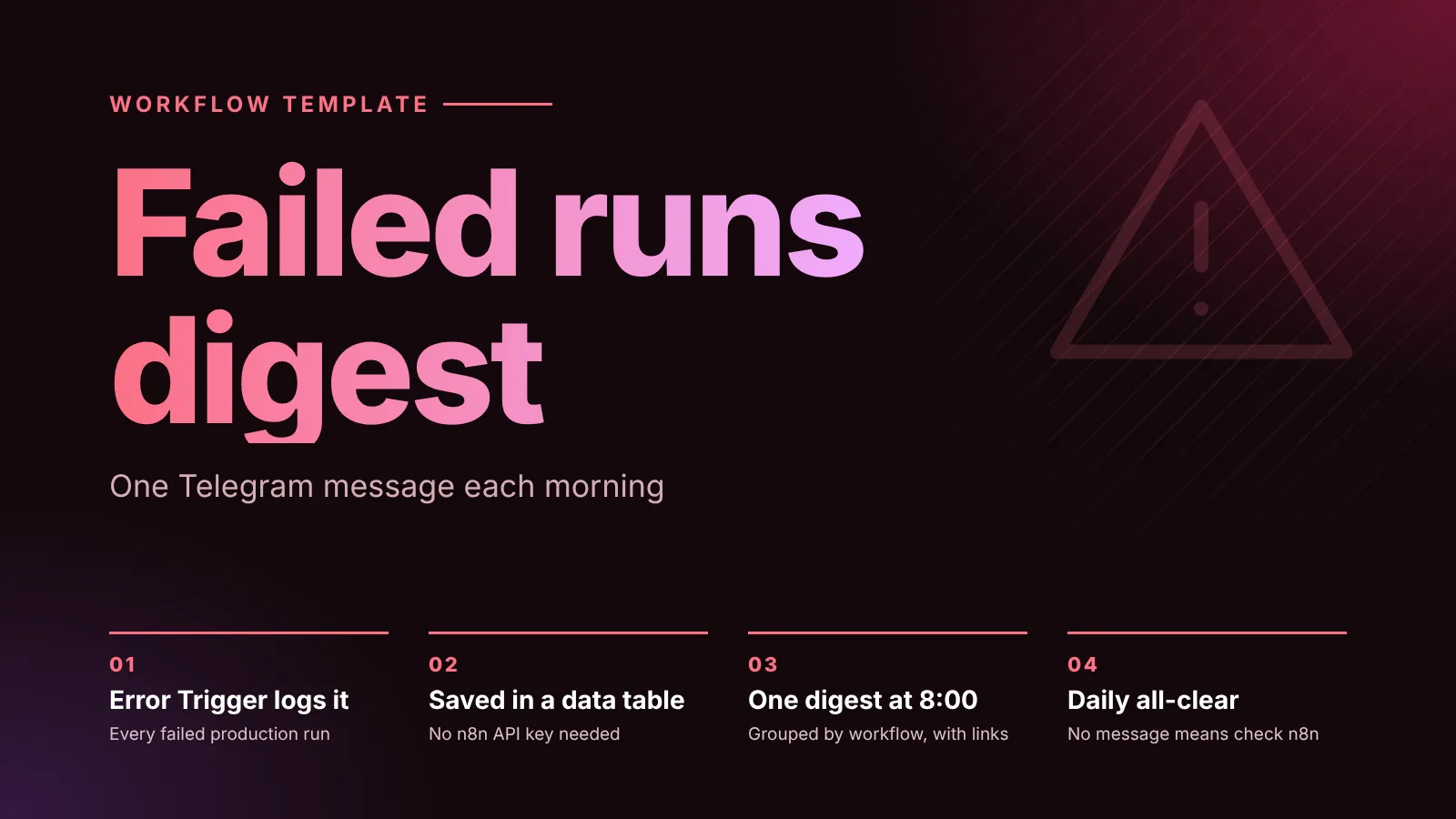
This n8n error workflow catches every failed run of the workflows you link to it, stores each failure in a data table, and sends you one Telegram message each morning: how many runs failed, in which workflows, the last error of each, and a link to the failed execution. On a day with no failures you get a short all-clear instead, so a missing message tells you something is wrong too. It needs a Telegram bot and one n8n data table, and no n8n API key.
The short version
- What it catches: any production run that fails in a workflow whose Error workflow setting points at this one. Manual test runs don't count; n8n's docs say the Error Trigger only runs when an automatic execution fails.
- What you get: one Telegram message at 8:00, failures grouped by workflow with a count, the node that failed, the error message and a link to the last failed execution.
- Why a digest: a flaky workflow that fails 30 times a night sends one line, not 30 alerts.
- What you need: n8n with data tables, a Telegram bot and your chat ID. Tested on n8n 2.39.8.
- Setup time: about 10 minutes, plus one setting change in each workflow you want to watch.
Daily digest of failed n8n executions
Nodes (8)
- Data Table ×3
- Code
- Edit Fields
- Error Trigger
- Schedule Trigger
- Telegram
Credentials you'll need
- Telegram API
To import: copy the JSON, open a workflow in n8n and paste onto the canvas (Ctrl+V or ⌘V). Credentials are never included; connect your own after importing.
How the workflow works
The workflow has two triggers and 8 nodes. The top branch runs every time a linked workflow fails; the bottom branch runs once a day.
When something fails:
- When a workflow fails (Error Trigger) receives the failure: the workflow's ID and name, and the execution's ID, URL, error message and the last node that ran.
- Log failure (Data table, Insert) writes one row to the
failed_executionstable, with the time it failed.
Every morning:
- Every morning at 8 (Schedule Trigger) starts the report.
- Report settings (Edit Fields (Set), JSON mode) holds your Telegram chat ID and how many workflows to list (
maxWorkflows, 8 by default). - Load failures (Data table, Get with Return All) reads every row logged since the last report. Always Output Data is on, so a day without rows still reaches the next node and produces the all-clear.
- Build digest (Code) groups the rows by workflow, sorts them by number of failures and writes the message. It also remembers the highest row ID it reported.
- Send digest (Telegram, Send Message) sends it with HTML formatting, so workflow names are bold and the execution link is clickable.
- Clear reported rows (Data table, Delete) removes the rows with an ID up to the one the digest reported, using the Less Than or Equal condition. A failure logged while the report runs has a higher ID, so it stays for tomorrow.
The delete runs after the Telegram node on purpose. If Telegram rejects the message, the run stops there and the rows stay in the table, so the next morning's digest still includes them.
What the digest looks like
This is the message from our test run, with two test workflows that failed on purpose (one with a Stop And Error node, one calling a domain that doesn't exist):
n8n daily report
3 failed executions in 2 workflows since the last report.

then8nblog test: invoice sync (fails on purpose): 2 failures
Last error in Push invoice to accounting: Accounting API returned 503 Service Unavailable
Open the last failed execution

then8nblog test: CRM import (fails on purpose): 1 failure
Last error in Fetch CRM contacts: The connection cannot be established, this usually occurs due to an incorrect host (domain) value
Open the last failed execution
"Open the last failed execution" is a link to that execution in your n8n editor, taken from the execution.url field the Error Trigger receives. With no failures, the message is:
n8n daily report
No failed executions since the last report.
What the Error Trigger receives
n8n's error handling docs list the data an error workflow gets. The Log failure node maps these fields:
| Column | Expression | Notes |
|---|---|---|
workflowName | {{ $json.workflow.name }} | Always present |
executionUrl | {{ $json.execution?.url ?? '' }} | Only when the execution was saved to the database |
lastNode | {{ $json.execution?.lastNodeExecuted ?? $json.trigger?.error?.node?.name ?? '' }} | The node that failed |
errorMessage | {{ String($json.execution?.error?.message ?? $json.trigger?.error?.message ?? 'Unknown error').slice(0, 500) }} | Capped at 500 characters |
The ?. and ?? fallbacks are there because a failure in the trigger of a workflow arrives in a different shape. According to the docs, the workflow never ran in that case, so there's no execution ID or URL, and the error is under trigger.error instead of execution.error. The row is still logged, just without a link. If the expression syntax is new to you, see the n8n expressions cheat sheet.
Credentials you need
- Telegram API: a bot token from Telegram's BotFather, saved as a Telegram credential in n8n. The workflow references it as
Telegram account; pick yours in the Send digest node after import.
The data table nodes need no credentials.
Set it up
- Create the data table. In your project, open the Data tables tab and create a table named
failed_executionswith these columns:workflowId,workflowName,executionId,executionUrl,lastNode,errorMessage(all string) andfailedAt(date). The three Data table nodes find the table by that name. - Import the workflow. Copy the JSON above (or download it) and paste it onto an empty canvas, then save it.
- Add your Telegram credential to the Send digest node.
- Set your chat ID in the Report settings node, replacing
<your-chat-id>. The website uptime monitor template explains how to find it. - Publish the workflow. The morning schedule only runs once the workflow is published. We also published it before linking other workflows to it.
- Link the workflows you want to watch. In each one, open Options > Settings, choose this workflow under Error workflow, and save. n8n's docs say one error workflow can serve many workflows.
- Test it. You can't test the error branch by clicking Execute workflow in the failing workflow, because manual runs don't start error workflows. Make a small workflow with a Webhook trigger and a Stop And Error node, link it, publish it and call its production URL. A row should appear in
failed_executions. Then open this workflow and run the Every morning at 8 trigger by hand to get the digest right away.
Customize it
- Change the time. Edit Every morning at 8. It runs in the workflow's time zone, which comes from the instance setting (
GENERIC_TIMEZONEwhen self-hosted) unless you change Timezone in the workflow's settings, as described in the Schedule Trigger docs. - Send it twice a day. Add a second rule to the Schedule Trigger. Each report covers everything logged since the previous one, so nothing is counted twice.
- Skip the all-clear. Add a Filter node after Build digest that only passes items where
{{ $json.failures }}is greater than 0. You lose the "n8n is alive" signal, though. - Send it somewhere else. Swap the Telegram node for Slack, email or Discord and use
{{ $json.message }}. The text uses Telegram's HTML tags (<b>,<a href>), so adjust them for the new channel. - Keep a history. Remove Clear reported rows and add a filter on
failedAtin Load failures instead. Watch the storage limit below.
Known limits and failure modes
- Only linked workflows are covered. A workflow without this one set as its Error workflow fails silently as far as the digest is concerned. Link new workflows when you create them.
- It can't report its own instance being down. If n8n is down at 8:00, no message arrives. That's why the all-clear exists: no message at all is the signal. For outages of the sites and APIs your workflows depend on, see the website uptime monitor.
- A failed digest. n8n's docs say a workflow that contains an Error Trigger uses itself as its error workflow by default, and n8n 2.46.0 fixed a bug so a workflow's own Error Trigger runs when no error workflow is selected. On 2.46 or later, a failed digest run should therefore be logged and show up in the next digest. We tested on 2.39.8 and didn't test this path.
- Long messages are shortened. Telegram allows 4096 characters per message. The Code node stops adding workflows at about 3500 characters or after
maxWorkflowsworkflows and ends with "And N more workflows", and it shortens error messages to 200 characters. - Storage. All data tables in an instance share a default limit of 200 MiB, which self-hosted users can raise with
N8N_DATA_TABLES_MAX_SIZE_BYTES. A row here is well under 1 KB, and the table is emptied every morning. - Execution counts. n8n's changelog for 2.28.0 says error workflow executions are excluded from the billable execution count, so logging a failure doesn't use up executions on plans that count them. The morning report is a normal scheduled run, one a day.
Related
- How to update self-hosted n8n safely: upgrades are a common cause of a sudden batch of failures.
- More error alerting and retry patterns are collected under the error handling tag, and more tested workflows under use cases.
Sources
Editorial team
The then8nblog editorial team researches every article from n8n's release notes, documentation and source code, states the n8n version each guide was tested on, and has every post reviewed by a human editor before it goes live.